How to Convert ChatGPT Images to Vector Files (Step-by-Step)
You’ve made something great with ChatGPT, a logo, an illustration, an icon, a graphic for your brand. Now you need to turn it into a vector file so you can actually use it: print it on shirts, embroider it on hats, scale it for signs, send it to a manufacturer.
This guide walks you through three concrete methods to convert your ChatGPT image into a vector file, from free DIY approaches to professional services. We’ll cover what each method is good for, what it isn’t, and how to pick the right one for your project.
Why You Need to Convert in the First Place
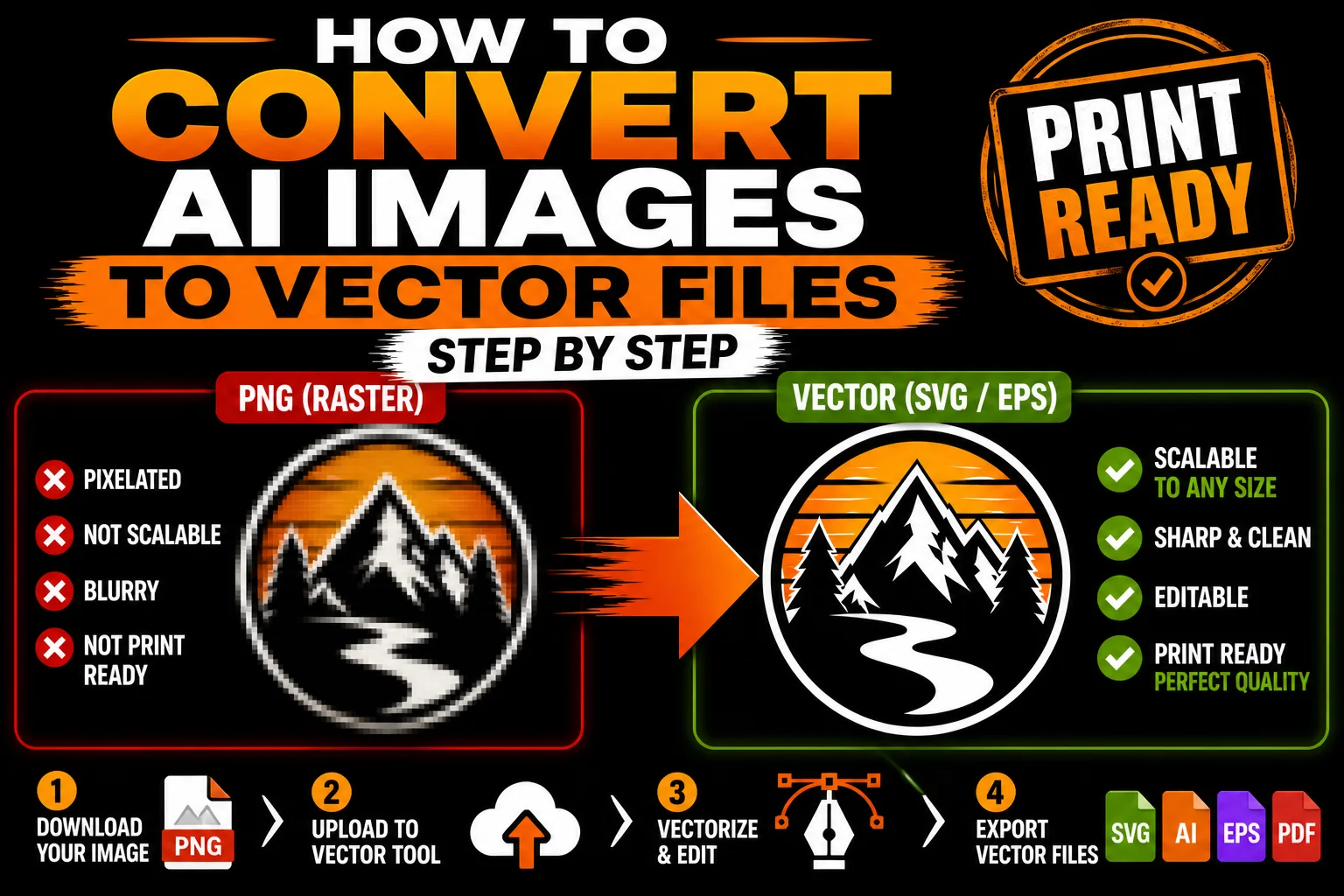
ChatGPT’s image tool produces PNG files, raster images made of pixels. These look fine on screens at the size they were generated, but they break down for any serious production work:
- Printing at large sizes makes them blurry and pixelated.
- Embroidery, screen printing, and pad printing require vector paths the machines can read.
- Vinyl cutting, laser cutting, and CNC literally cannot read pixel data; they need actual paths to follow.
- Scaling, recoloring, and editing require vector paths, not pixel grids.
Converting your ChatGPT PNG to a vector file (SVG, AI, EPS, or vector PDF) is what makes it usable for these production scenarios.
The conversion process is called vectorization or tracing. There are three main ways to do it, and they vary widely in quality, speed, and cost.
Method 1: Free Online Auto-Tracers
The cheapest option, and the right starting point if your design is genuinely simple.
Tools: PNG2SVG, Vectorizer.io, AutoTracer, online Inkscape clones, various AI-vectorize sites.
How it works: You upload your PNG. The tool runs an automatic tracing algorithm that detects edges and color regions, converting them into vector paths. You download an SVG.
Time: 1-2 minutes per image.
Cost: Free or low cost (some have premium tiers).
Best for:
- Simple, high-contrast logos (solid black on white, single-color silhouettes)
- Geometric icons with clean shapes
- Quick-and-dirty placeholders or testing
- Designs with no gradients, shadows, or fine detail
Where it fails:
- AI images with anti-aliased (soft) edges, which is essentially every ChatGPT image
- Anything with gradients, drop shadows, glows, or atmospheric effects
- Designs with multiple subtle color variations
- Fine details that need to remain crisp
- Text inside the image (gets traced as messy paths, not real type)
Realistic expectation: For a simple black-and-white silhouette logo, free auto-tracers can give you a usable result in seconds. For most ChatGPT-generated images, the result will need significant cleanup or redrawing to be production-ready.
Method 2: Adobe Illustrator’s Image Trace
The standard professional tool, included with any Illustrator subscription.
Tools: Adobe Illustrator (subscription required).
How it works:
- Open Illustrator and place your PNG into a new document.
- Select the image, click “Image Trace” in the top toolbar (or via Object > Image Trace > Make).
- Choose a preset (Black and White Logo, 3 Colors, 6 Colors, High Fidelity Photo, etc.).
- Open the Image Trace panel for fine-tuning: adjust threshold, paths, corners, noise.
- Click “Expand” to convert the trace into editable vector paths.
- Clean up: simplify paths, remove stray nodes, adjust colors.
- Save as AI, SVG, EPS, or PDF.
Time: 10-30 minutes per image, depending on complexity and how much cleanup you do.
Cost: Adobe Illustrator subscription (~$20-30/month).
Best for:
- Designers who already use Illustrator
- Mid-complexity designs where you want more control than free tools provide
- Cases where you’ll iterate on the result yourself
- Multiple files where you want consistent treatment
Where it falls short:
- Image Trace still struggles with the soft, anti-aliased edges of AI-generated images
- Gradients are simplified into bands or muddy regions
- Output paths often have too many nodes and need significant simplification
- Doesn’t recognize “what should be a logo” vs. “what’s just background noise”
Realistic expectation: Illustrator’s Image Trace is markedly better than free online tools. With patience and cleanup skills, you can get usable vectors from many ChatGPT images. But it’s not magic, and it’s not fast. Plan on spending real time tuning settings and cleaning up paths.
Method 3: Professional Vectorization Service
The fastest path to genuinely production-ready vectors.
How it works: You send your PNG to a vectorization service. A designer manually redraws your image as clean vector paths, paying attention to design intent, proper construction, and production needs. You receive back the vectorized image in multiple formats.
Time: Typically 12-48 hours, depending on service and complexity.
Cost: Varies. Often $5-50 per image depending on complexity and turnaround speed.
Best for:
- Logos and brand assets that need to be perfect
- Complex AI illustrations where auto-trace fails
- Anything you’ll be printing, embroidering, or producing professionally
- Cases where you don’t have design skills to clean up auto-traced files
- Tight deadlines where you need clean files fast
- Multi-format delivery (SVG, AI, EPS, PDF, single-color versions, etc.)
What you get:
- Hand-drawn vector paths (clean, minimal nodes, intentional curves)
- Editable colors, layers, and elements
- Multiple file formats for different use cases
- Often: single-color, reversed, and simplified variants
- Production-ready output that printers and manufacturers will accept without complaint
Realistic expectation: This is what people use when the result actually has to be good. The output looks polished, scales perfectly, edits cleanly, and works in any production scenario.
How to Choose the Right Method
Quick decision framework:
Use a free auto-tracer if:
- Your design is a simple, high-contrast logo or silhouette
- You’re testing an idea, not finalizing it
- You have basic vector editing skills to clean up if needed
- Quality isn’t critical (placeholder, internal use, low-stakes project)
Use Adobe Illustrator’s Image Trace if:
- You already pay for Illustrator
- You have design skills and time
- Your design is mid-complexity
- You want hands-on control over the result
Use a professional vectorization service if:
- The vector will be used for real printing, embroidery, or manufacturing
- You don’t have design skills (or don’t want to spend hours cleaning up)
- The design has gradients, shadows, fine detail, or complexity
- You need it fast and clean
- You need multiple formats and variants delivered ready to use
For most people taking AI-generated work to actual production, professional vectorization is the right choice. The cost is small, the time saved is huge, and the quality is dramatically better than DIY approaches.
Step-by-Step: The Full ChatGPT-to-Vector Workflow
Whichever method you pick, here’s the complete workflow.
1. Generate your image in ChatGPT. Iterate prompts until you have a result you love. Tips for vector-friendly output:
- Ask for “minimal,” “flat design,” “logo style,” or “clean line art”
- Specify “maximum 3 solid colors, no gradients, no shadows”
- Avoid photorealism, 3D effects, and fine detail
- Skip text inside the image (add real type later)
2. Download the highest-resolution PNG available. Better source quality = better vector quality. If ChatGPT offers options for higher-res output, take them.
3. Optional: Clean up the PNG before vectorizing. If your image has obvious issues (background noise, stray colors, unintended elements), clean these up in Photoshop or a free editor first. A cleaner input gives a cleaner output.
4. Vectorize using your chosen method. Auto-tracer, Illustrator, or professional service.
5. Verify the vector output. Open the result in a vector editor. Check:
- Are paths clean (not jagged or fragmented)?
- Do colors match your intent?
- Is text editable (if applicable)?
- Does it look right at multiple zoom levels?
6. Save in the formats you’ll need.
- SVG for web and modern uses
- AI for designers and Adobe workflows
- EPS for older or specialized print workflows
- PDF for universal compatibility (be sure it’s saved as vector PDF)
- Single-color version for one-color printing (embroidery, vinyl, screen)
- Reversed version (white-on-dark) for dark backgrounds
7. Send to your printer, manufacturer, or production process. Everything prints sharp, scales perfectly, and edits cleanly. Job done.
Common Mistakes to Avoid
Treating high-resolution PNG as a vector file. It’s not. A 4000-pixel PNG is still pixels. It will still pixelate when scaled enough, still can’t be cut by a vinyl machine, still won’t be accepted by a screen printer.
Saving a PNG as a PDF and calling it vector. A PDF wrapping a raster image is still a raster image. Real vector PDFs have actual paths inside them.
Using auto-trace for complex AI images. This usually produces messy, hard-to-edit results. Either simplify your design first or use professional vectorization.
Not asking for multiple formats. Different production processes need different formats. Get SVG, AI, EPS, and vector PDF up front rather than scrambling later.
Ignoring the single-color version. Embroidery, vinyl, screen printing, and many other processes often work best (or only) with single-color art. Have a black-only version of your logo ready.
Trusting AI-generated text in the image. It’s rarely typographically correct. Generate the symbol/icon as an image, then add real, editable type in your vector editor.
What If You Don’t Want to DIY?
If reading the above gave you a headache, here’s the simple version: just send your ChatGPT image to a vectorization service. We hand-redraw your AI design as clean vector paths, deliver multiple formats (SVG, AI, EPS, PDF) plus single-color and reversed versions, and have it back to you within 24 hours.
You don’t need design skills. You don’t need to learn Illustrator. You don’t need to fight with auto-trace settings. You send a PNG, you get back production-ready vector files. That’s it.
ChatGPT is great at generating ideas and visuals. Vectorization is what turns those visuals into real, usable assets. Together, they’re the fastest, cheapest way for solo founders, small businesses, and freelancers to produce professional branded work.
Got an AI-generated image that needs to become a vector file? Let’s make it print-ready.
)