Can ChatGPT Make a Vector File for My Logo?
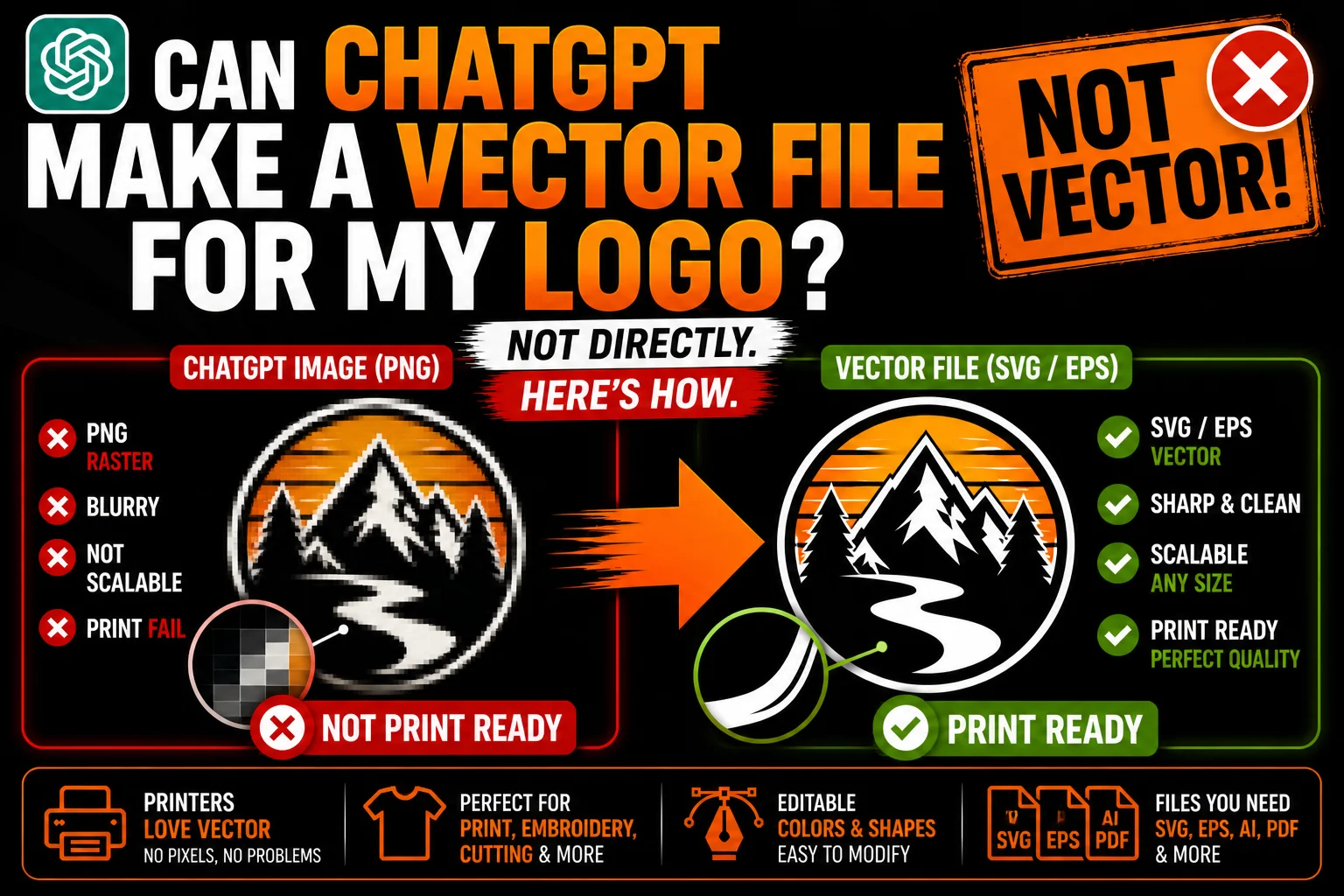
ChatGPT may create SVG code for a logo, but the useful question is whether the delivered artwork matches your approved design. A generated image may instead contain pixels. Inspect the actual file, test the lettering and request any necessary tracing or redraw before treating it as your business’s production master.
A request for vector artwork often arrives after a ChatGPT logo concept has already been selected for a website, business card, product or sign. Before sending a file to several suppliers, identify whether the approved source contains pixels or editable paths. That inspection determines whether the logo needs tracing, reconstruction or refinement and prevents different vendors from rebuilding the same mark in inconsistent ways.
ChatGPT can write SVG code describing a vector logo, but that is different from guaranteeing a faithful, production-ready version of your chosen design. Its image-generation workflow may give you a raster image such as a PNG. Inspect the actual output first: you may need to refine existing paths, reconstruct a pixel image or correct the lettering before the file suits your business.
This article explains the difference between generated images and SVG code, the checks each needs, and the workflow for creating a reliable vector master from a selected raster concept.
The Quick Answer (And the Catch)
Two things ChatGPT can do:
- Generate logo images. A raster download can help explore a direction, but its pixels are not editable vector paths.
- Write SVG code. The markup can describe usable vector shapes; render and inspect the result before accepting it.
What you still need to verify before using the artwork:
- Whether a supplied SVG faithfully matches the approved design rather than merely resembling it.
- Whether the lettering, paths and colors suit the intended application and size.
- Whether the supplier needs additional preparation, such as cutting paths or embroidery digitizing.
If the chosen image contains pixels and you need editable paths, tracing or reconstruction can provide the missing step. If it already contains suitable vectors, focus on reviewing and refining them instead.
Why Logos Need Vector Files
A quick refresher on why this matters at all. A logo isn’t just a picture, it’s an asset that has to work everywhere your brand shows up:
- Tiny: favicon, app icon, business card
- Medium: website header, social media profile
- Large: sign, banner, billboard, vehicle wrap
- On products: t-shirts, mugs, tote bags, packaging
- One color: black-only stamps, embroidery limits, single-color print runs
- Custom colors: matching brand-specific Pantones for high-end print
A vector master makes flat shapes easier to resize, recolor and adapt. A raster image can still work on screens and in print when its dimensions suit the application. Neither format automatically solves every use: small lettering, texture and the manufacturing process may require different versions of the design.
Suppliers request artwork according to the process they use. Cutting needs paths; embroidery needs digitized stitches; printed images need suitable preparation at the finished size. A useful logo file set anticipates those needs rather than relying on a single preview.
What Happens When You Ask ChatGPT for a Logo Vector Directly
Try this experiment. Open ChatGPT and type:
“Create an SVG vector logo for a coffee shop called ‘Brew & Bean,’ with a stylized coffee bean and clean modern type.”
You’ll get back a chunk of SVG code. Save it as brewandbean.svg and open it in a browser or vector editor. What did you get?
One possible result is a simple bean symbol with the business name set beside it. Start by checking whether those elements match your brief and remain readable when small.
Another result may have awkward curves or spacing that needs correction. Those defects are reasons to revise the artwork, not proof that every generated SVG is unusable. Compare the composition, text and geometry with the direction you actually approved.
SVG code needs to be rendered so its visual result can be judged. Inspect the silhouette, letter spacing, line weight and any embedded images in a vector editor. Revise and compare again after changes. Simple geometry may be easier to check, while a distinctive wordmark can need closer design attention. The quality of the output depends on the specific result and review process; it should not be inferred solely from how the code was generated.
What Happens When You Use ChatGPT’s Image Tool Instead
The image-generation route can help explore styles and compositions. Its output may look polished in a preview, but you still need to examine the download, spelling and details before treating the selected direction as finished branding.
If the downloaded result is a PNG, it consists of pixels. A vector-looking visual style does not change that file structure.
A raster image may be usable for some printing at appropriate dimensions, but it does not provide cutting paths or independently editable shapes. Check its resolution and the supplier’s process before deciding to reconstruct it. For embroidery, even a clean vector source needs a separate stitch preparation stage.
The two outputs therefore lead to different review tasks:
- SVG code: render the design, inspect its objects and refine any inaccurate details.
- Generated image: inspect the pixels and decide whether production requires tracing or reconstruction.
Either route needs a check against the business brief and actual production requirements.
The Workflow That Actually Gets You a Real Vector Logo
When your chosen concept is a raster image and you need a vector master, the following workflow provides a practical route:
Step 1: Select and approve the direction. Use your brief to compare concepts, then verify the wording and proportions. If the chosen artwork already contains suitable vectors, review those instead of generating and retracing an unnecessary image. If it is a raster concept, preserve the clearest original as your reference.
Step 2: Save the PNG at the highest resolution available. Cleaner source = cleaner vector.
Step 3: Vectorize when needed. Choose a route that preserves the approved design and allows detailed corrections. Two options are:
- Auto-tracing with review. Use a tracing tool such as Illustrator’s Image Trace or Inkscape’s Trace Bitmap. Adjust the settings, compare the shapes and correct the output. Clear silhouettes may trace well; softer or more complex artwork may need further reconstruction.
- Professional vectorization. A designer can rebuild uncertain details as deliberate paths. Agree on the wording, colors, variants and required formats, then review the result before sending it to a supplier.
Step 4: Receive your vector logo files. Multiple formats (SVG, AI, EPS, PDF), plus useful variants (single color, reversed, simplified) that printers and manufacturers will actually use.
This turns a selected raster concept into a checked master and application files, with the production requirements guiding what gets delivered.
Why Auto-Trace Often Isn’t Enough for a Logo
An automatic trace can be useful, but inspect it before accepting the result. The following source characteristics can create problems that require settings changes, manual cleanup or reconstruction:
Soft edges create extra shapes. Blended transitions may be flattened or separated into several paths. Adjust the trace and compare the silhouette with the approved design; the amount of correction depends on the specific image.
Gradients break. AI loves to add atmospheric lighting and subtle color blends. Auto-tracers can’t decide where one color ends and another begins, producing messy or banded results.
Fine details fragment. Thin lines may disappear or break into chains of disconnected slivers. A clean illustration can become a fragmented mess.
Text becomes paths. A trace follows the supplied lettering rather than recovering the original font or correcting spelling. Those curves remain editable, but inaccurate words or letterforms may be better rebuilt with properly set type.
Colors may need correction. A trace samples source pixels, which can introduce intermediate shades. Replace them with the approved color values where needed, and ask the supplier to check the production version.
For a clean, simple, high-contrast logo (think: solid black silhouette on white), auto-trace can be enough. For most real AI-generated logos with style, character, or color complexity, you’ll want professional vectorization.
Tips to Get a Better Result From ChatGPT in the First Place
If you’re going to vectorize your ChatGPT logo, design it in a way that vectorizes well:
Prompt for simplicity. “Minimal,” “flat design,” “two colors,” “no gradients,” “clean line art” all produce designs that translate to vector beautifully.
Avoid realistic shading. “3D look,” “metallic,” “embossed,” “with shadow,” all sound cool but produce nightmares for vectorization.
Specify limited colors. “Maximum 3 solid colors” makes the vectorization process dramatically smoother.
Review the text separately. One option is to generate the symbol first and add real type in a vector editor. Either way, check every letter against the approved business name.
Aim for bold, distinct shapes. A logo with one strong, clear element vectorizes better than one with twenty tiny details.
Generate at high resolution. When ChatGPT offers higher-res output, take it. Cleaner source = cleaner vector.
A clear, simple source can reduce tracing work, but a prompt does not guarantee a polished conversion. Compare the resulting paths, lettering and colors, then decide which details need correction or simplification for the intended applications.
A Realistic Workflow Example
Consider this illustrative workflow for a small skincare business. It is an example of the stages to plan, not a client case study or a promised delivery schedule.
Concept selection. The business explores several rose symbols and type directions with ChatGPT, then selects a composition it likes. Before moving forward, it records the approved spelling, the important shapes and the supports on which the logo will appear.
Source inspection. The owner downloads the clearest available file and asks suppliers about packaging, labels, a storefront sign and embroidered robes. Those uses require different checks; the business does not assume that the same PNG or SVG will be ready for all of them.
Reconstruction and review. A designer assesses the source and agrees on the work needed. The owner then reviews the curves, lettering and colors, along with the planned SVG, AI, EPS or PDF exports. A single-color and a reversed variant can be prepared if the applications require them.
Supplier handoff. The printer and sign maker receive their requested formats and dimensions. The embroiderer digitizes an appropriate version into stitches and provides a sample for approval. The website receives an export suited to its header and other placements.
The benefit is a coordinated set of files and a documented approval process. Each recipient can identify the correct version, and the business retains its master for future adaptations. The result still depends on the artwork and proofing; this example does not imply a universal cost, delivery time or production guarantee.
The sequence is concept, inspection, preparation and approval, with the actual supplier requirements checked along the way.
When You Should Skip ChatGPT and Hire a Designer
To be honest, there are situations where AI plus vectorization isn’t the right approach:
- You need a distinctive identity developed around a detailed business brief and several applications.
- Your customers need clear signals of credibility that deserve discussion and application testing.
- You need a comprehensive brand system, not just a logo (typography, color theory, voice, applications).
- You want a design rooted in original concept work rather than AI-generated remixing.
- You’ll need ongoing design support (campaigns, print collateral, social, packaging extensions).
In these situations, a designer can help define the identity and carry it through the required applications. A smaller launch may also benefit from that support. Choose according to the brief, the team’s skills and the file requirements, rather than assuming that every small business needs only a generated image and a trace.
The Bottom Line
ChatGPT can write SVG code, and that output may be useful after review. Image generation is a different route that can produce raster artwork. Inspect which kind of file you actually have and compare its contents with the design you approved before deciding what still needs to be done.
If a selected raster logo needs paths, tracing or professional reconstruction can create them. If usable vectors already exist, refine and export them appropriately. In both cases, prepare the formats and variants required by the actual applications, then approve the result before production.
Send us the generated artwork and describe the supports you plan to use. We can assess whether it needs reconstruction, discuss the scope and schedule, and prepare the agreed vector files and variants. Your printer, embroiderer or sign maker should review the relevant production version before the final run.
Your AI-generated logo deserves to be more than a screenshot. Let’s make it real.
Technical sources: OpenAI : image generation output formats