Can ChatGPT Create Vector Files for Printing?
If you’re a designer, small business owner, or hobbyist who’s been using ChatGPT for creative work, you’ve probably hit this wall: ChatGPT made you something cool, but now your printer, embroiderer, or sign maker is asking for a vector file and ChatGPT didn’t give you one.
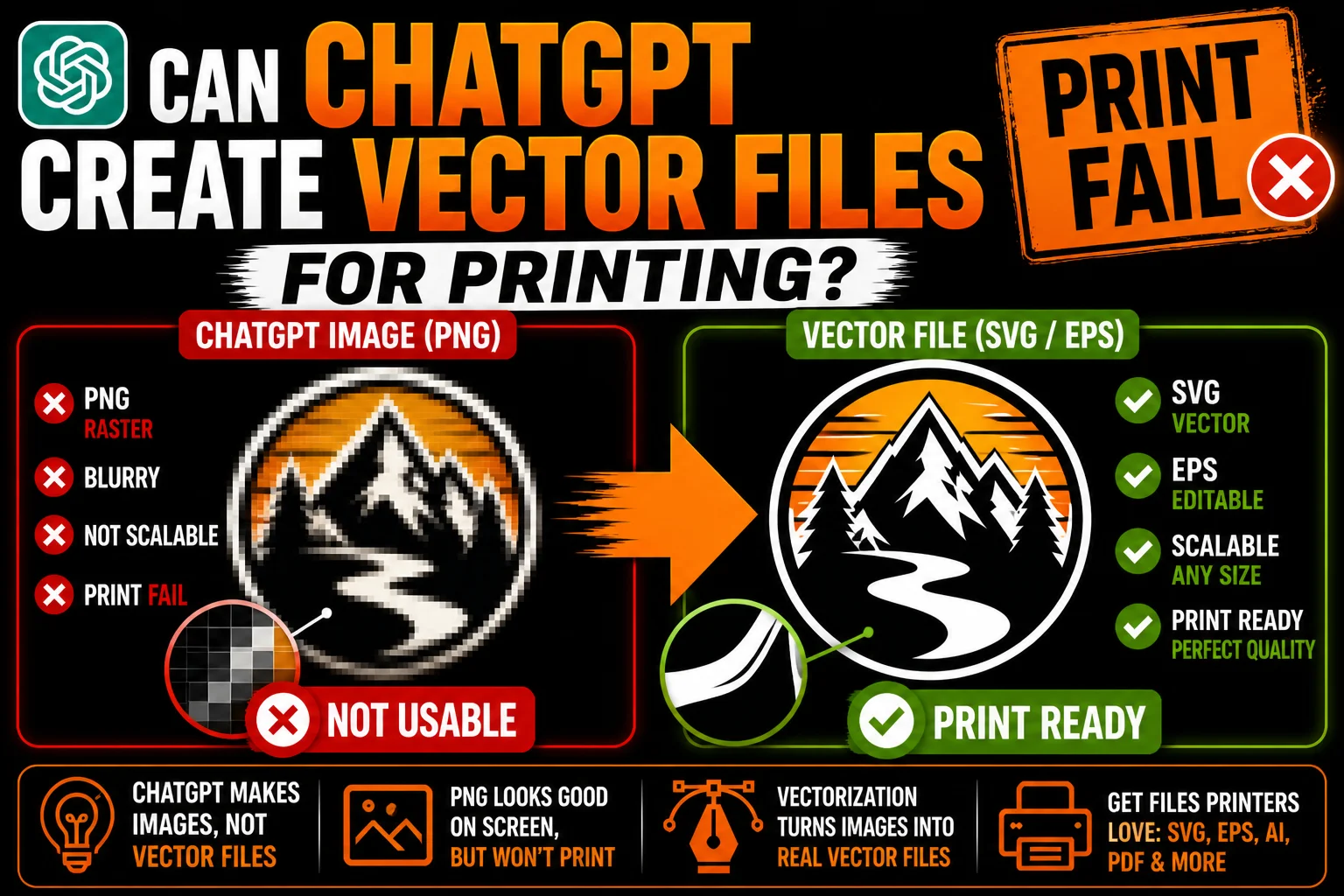
So can ChatGPT create vector files at all? The technical answer is yes, but with a major asterisk. The practical answer for printing is: not in any reliable way. ChatGPT was not built for vector file generation, and the closest it can do (writing SVG code or producing PNG images) doesn’t deliver the print-ready vectors you actually need.
This article walks through what’s possible, what’s not, and what to do when you need real vector files from ChatGPT-generated work.
Why Printing Demands Vector Files (And Not PNGs)
Before diving into ChatGPT specifics, let’s get clear on why this matters. Printing, manufacturing, and fabrication processes need vector files because:
Scaling without quality loss. A vector file can print at 1 inch or 10 feet at perfect quality. A PNG that looked fine on Instagram will pixelate and blur the moment you scale it for a banner, sign, or large product surface.
Spot color and ink separation. Screen printers, embroiderers, and pad printers separate designs into solid-color layers. Vectors do this naturally; rasters don’t.
CNC, laser, and vinyl cutting. These machines literally need paths, lines for the cutter to follow. They can’t read pixels at all. No vector file = no cutting.
Embroidery digitization. Translating a logo into stitches starts from clean vector paths. From a PNG, the digitizer has to recreate everything from scratch.
Color editing for variants. Need a black version, a white version, a single-color version, a Pantone-matched version? Vectors let a designer change colors instantly. Rasters need full re-edits.
This is why every serious print job, branded merch run, or product manufacturing process asks for vector files. It’s not gatekeeping, it’s the technical reality of how production works.
What ChatGPT Actually Produces
ChatGPT has two output paths relevant here:
The image tool produces PNGs. When you ask ChatGPT to “create an image of X,” it uses its image generation capability and gives you back a PNG. Beautiful, often. But raster, always. Not a vector file.
The text/code path can produce SVG. If you ask ChatGPT to “write SVG code for X,” it’ll generate XML markup that defines shapes. Save it with a .svg extension and you have a vector file. Whether you want to use it is another question.
Most users find the image tool first because it produces visually impressive results. Then they discover those results aren’t vector files, and they’re stuck.
Why ChatGPT-Generated SVG Code Is Rarely Print-Ready
Let’s be specific about why directly asking ChatGPT for SVG doesn’t usually work for print:
Visual quality is rough. ChatGPT writes SVG code with no visual feedback loop. It’s predicting coordinates that should form a shape, without ever seeing the result. For complex designs, the output looks crude.
Paths are inefficient. Even when ChatGPT produces a recognizable image in SVG, the underlying paths are often clunky, with too many points, awkward curves, or odd construction. Designers can spend more time fixing ChatGPT’s SVG than redrawing it from scratch.
No design judgment. A logo isn’t just “shapes that look like a thing.” It’s about weight, balance, negative space, hierarchy. ChatGPT can’t make these judgments, so even technically correct output feels off.
Not optimized for production. Real print-ready vectors are built with intent: closed paths, no stray nodes, clean color fills, proper layering. ChatGPT doesn’t think about any of that.
For a quick icon to drop into a side project, ChatGPT’s SVG might be fine. For anything you’d send to a printer? Almost never.
The Print Workflow That Works
Here’s how people actually get usable vector files when they’re starting from ChatGPT:
Step 1: Use ChatGPT’s image tool to design your concept. Iterate on prompts until you have a PNG you like.
Step 2: Save the PNG at the highest resolution available. Better source = better vectorization.
Step 3: Get the image vectorized. This is the step ChatGPT can’t do. Two options:
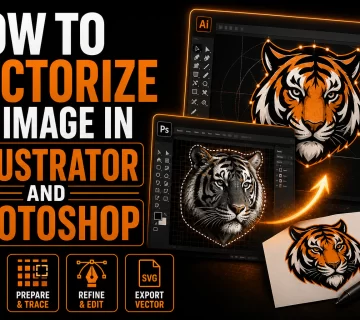
- Auto-trace tools. Free or low-cost. Adobe Illustrator’s Image Trace, Vector Magic, Inkscape’s Trace Bitmap, or various online converters. Adequate for simple designs (high-contrast logos, basic silhouettes). Often poor results for anything more complex.
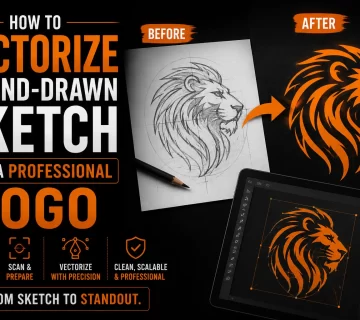
- Professional vectorization service. A designer manually redraws your image as clean vector paths. Polished, editable, production-ready output in any format you need.
Step 4: Send the vector file to your printer, embroiderer, or manufacturer. Job runs smoothly. Output looks great.
This is the workflow that’s letting tons of small businesses use AI for real branded work. The AI handles ideation; the vectorization handles execution.
Why Auto-Trace Often Doesn’t Cut It for Print
A frequent shortcut: take the ChatGPT PNG, run it through a free auto-tracer, get a vector file, send it to print. Sometimes this works. Often it doesn’t. Here’s why:
Anti-aliasing creates noise. Every AI-generated image has soft, blended edges. Auto-tracers either flatten these (losing detail) or trace each color band as a separate path (creating dozens of unnecessary shapes).
Gradients are nightmares. AI loves to add subtle gradients and shadows. Auto-tracers can’t decide where one color ends and another begins, producing messy results.
Fine details break. Thin lines may disappear or fragment. Small letterforms get mangled. Tiny accents become illegible.
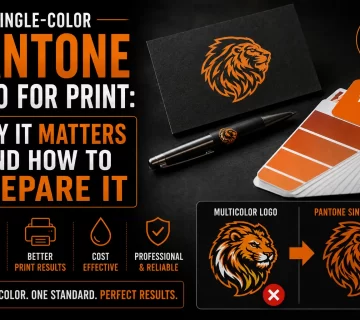
Spot colors aren’t honored. A real logo might use specific Pantone colors. Auto-trace just samples the pixels, giving you whatever colors the image happens to contain, often not the right ones for print.
Files need cleanup anyway. Even a “successful” auto-trace usually produces a vector file that needs significant cleanup before it’s truly print-ready: removing stray nodes, joining broken paths, fixing fill rules, simplifying overly complex curves.
For one-color silhouettes, cleanly drawn icons, or very simple AI output, auto-trace can be enough. For most real branded work? You’ll want professional vectorization.
Common Print Scenarios Where This Matters
Here are the situations where “I have a ChatGPT image but I need a vector file” comes up most often:
Screen printing on apparel. T-shirts, hoodies, hats. Screen printers need vectors because each color becomes a separate screen. They’ll ask for an .ai, .eps, or vector PDF.
Embroidery. Hats, polos, jackets, patches. The embroidery digitizer needs clean vector paths to convert into stitch files.
Vinyl cutting and stickers. Cricut, Silhouette, professional vinyl plotters all need vector paths. They literally cannot cut a PNG.
Large format printing. Banners, signs, vehicle wraps, trade show displays. PNGs blur at scale; vectors stay sharp at any size.
Promotional products. Pens, mugs, tote bags, water bottles. Pad printing and laser engraving need vector artwork.
Product packaging and labels. Boxes, cans, bottles. Print houses require vector files for the highest-quality output.
Business cards and stationery. Even these benefit from vector logos that print razor-sharp at any size.
In every one of these scenarios, the ChatGPT PNG is not enough. You need to get it vectorized.
What to Do Differently in ChatGPT to Make Vectorization Easier
If you know you’ll need to vectorize your AI image for print, prompt ChatGPT to make designs that vectorize cleanly:
Ask for “flat design,” “minimal,” or “logo style.” These produce simpler images with fewer gradients and shadows.
Specify limited colors. “Maximum 3 solid colors. No gradients. No drop shadows.” This makes vectorization dramatically smoother.
Avoid photorealism. Realistic lighting and texture make for stunning images but terrible vectorization candidates.
Skip text in the image. AI-generated text in images is rarely correct anyway. Add real, editable type in your vector editor after vectorization.
Iterate to clean designs. A busy, detailed image is harder to vectorize than a clean, simple one. Aim for clarity and bold shapes.
Choose contrast. Dark elements on light backgrounds (or vice versa) trace much more reliably than middle-tone or low-contrast images.
If you follow these tips, you’ll end up with AI-generated images that convert into clean, usable vectors with much less effort.
Don’t Be Fooled by “PDF” or “High Resolution”
Two common misunderstandings:
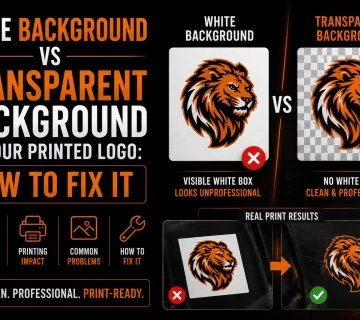
A high-resolution PNG is not a vector file. It’s still pixels, just more of them. It will still degrade if scaled enough, and it still can’t be cut by a vinyl machine or used as a screen-printing source.
A PDF can be raster or vector. Just exporting your image as a PDF doesn’t make it vector. If the PDF wraps a PNG, it’s still a raster file inside a PDF wrapper. A true vector PDF has actual paths inside it. Printers can tell the difference immediately.
When a printer asks for a vector file, they mean clean SVG, AI, EPS, or vector PDF. Not a high-res PNG, not a screenshot of your ChatGPT image, not a PDF that contains one.
The Bottom Line on ChatGPT and Vector Files
So, can ChatGPT create vector files for printing? Officially, kind of. Practically, no. The model isn’t built to produce production-quality vector graphics. Its image tool gives you raster files; its SVG code generation produces visually poor results except for very simple shapes.
What does work is using ChatGPT for what it’s great at (rapid ideation, polished image generation) and pairing it with a vectorization step to bridge the gap to real, print-ready files.
If you have a ChatGPT-generated logo, illustration, or graphic that you need to actually print, embroider, cut, or scale, that’s exactly what professional vectorization solves. Send us your AI image, and we’ll send back clean vector files in every format your printer needs. Fast, accurate, and ready to ship.
ChatGPT gave you the design. We make it printable.