
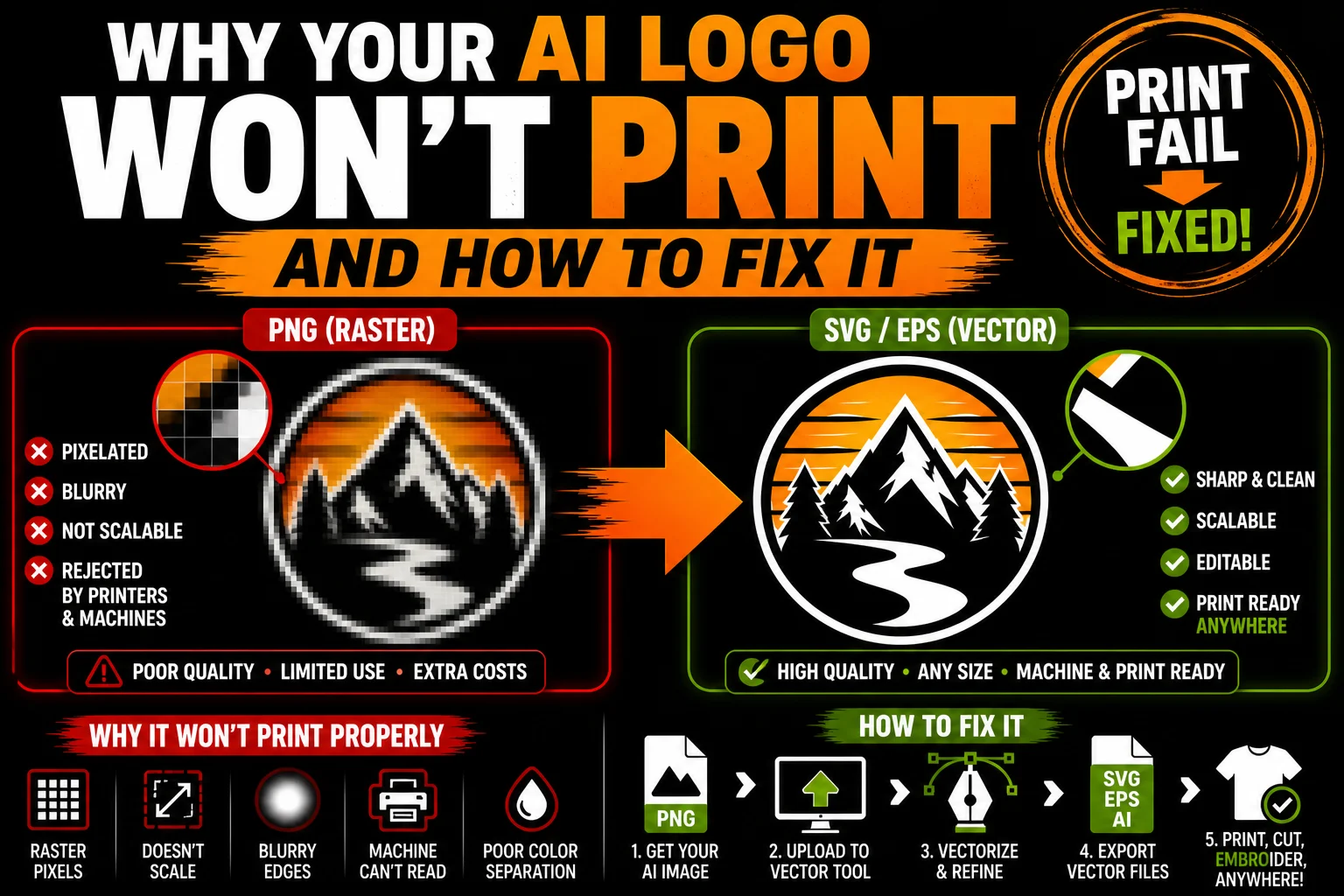
Why Your AI-Generated Logo Won't Print Properly (and How to Fix It)
You created a logo with ChatGPT, Midjourney, or another AI image tool. It looks fantastic on your screen. You sent it to a printer for business cards, merch, or signage, and one of these things happened:
- The printer rejected the file and asked for a “vector file.”
- The printer accepted the file but the result printed blurry, soft, or pixelated.
- Your embroidery shop said they can’t use it.
- Your sign maker said it won’t scale to the size you need.
- Your screen printer said it’ll cost extra to convert.
This is one of the most common frustrations of the AI-design era. The logo looks finished. It feels finished. But for actual production, it’s missing something critical. Here’s why, and exactly how to fix it.
The Core Problem: AI Generates Pixels, Not Vectors
Every popular AI image generator (ChatGPT, Midjourney, DALL·E, Adobe Firefly, Stable Diffusion) outputs raster images: PNG, JPG, or WebP files made of grids of pixels.
For viewing on a screen at the size the AI generated, this is fine. The image looks great in Figma, on social media, in a Google Doc, on your monitor.
For printing, the format breaks down. Real production processes (printing, embroidery, vinyl cutting, large-format display, manufacturing) need vector files: SVG, AI, EPS, or vector PDF. Vector files describe artwork as mathematical paths instead of pixel grids, which gives them properties printers absolutely require:
- Infinite scalability without quality loss
- Compatibility with cutting and embroidery machines that can only follow paths
- Clean color separation for spot-color printing processes
- Editable, non-destructive changes to colors and shapes
The PNG your AI tool gave you doesn’t have any of these properties. So when a serious printer or production process gets a PNG, they push back.
Why Your Logo Prints Blurry (When It Prints at All)
Even when a printer accepts a raster file, the print quality often disappoints. Here’s why:
The image was generated at a fixed resolution. Your AI tool gave you a PNG at, say, 1024×1024 pixels. That’s enough for a screen, not enough for print at any meaningful size. Print needs around 300 DPI (dots per inch) at the final size. A 1024-pixel-wide image only prints crisply at about 3.4 inches wide. Beyond that, it gets soft.
Anti-aliasing creates fuzzy edges. Look closely at any AI-generated logo. Where one color meets another, you’ll see soft, gradient edges. On screen, this looks smooth. On print, these soft edges become visibly blurry, especially against high-contrast backgrounds.
Scaling up amplifies flaws. Print at 2x the original size and minor anti-aliasing becomes obvious blur. Print at 5x and the logo looks distinctly mushy. Print on a banner or sign at 10x or more, and you’re looking at a clearly pixelated result.
Color reproduction is unpredictable. AI tools generate in RGB color space (for screens). Print uses CMYK (subtractive color). Without proper conversion, colors may shift, some may become unprintable, and the result may look different from the screen version.
These problems aren’t fixable by exporting at higher quality from the AI tool. The fundamental issue is the file format.
Why Embroidery Shops, Sign Makers, and Vinyl Cutters Reject Raster Files
Beyond just print quality, certain production processes literally cannot use raster files at all:
Embroidery digitization. Translating a logo into stitches requires clean vector paths to know where each stitch starts and ends. From a PNG, the digitizer has to recreate the entire logo from scratch as vector first, costing extra time and money.
Vinyl cutting (Cricut, Silhouette, professional plotters). These machines literally cannot cut a pixel image. They follow vector paths. No paths = no cutting.
Laser cutting and CNC. Same as vinyl, the machines need paths to follow. Pixel data is invisible to them.
Screen printing. Each color in the design becomes a separate screen with solid ink. Vector files separate cleanly into color layers; raster files require complex pre-press work to mimic this.
Large-format printing. Banners, signs, vehicle wraps, trade show displays all need vector files to print sharp at any size.
Pad printing on promotional items. Pens, mugs, water bottles. The pad printing process needs clean vector artwork to transfer cleanly.
If your production scenario falls into any of these categories, a raster file simply won’t work. You need a vector.
“But I Have a High-Resolution PNG, Isn’t That Enough?”
A common misconception. Higher-resolution PNGs help with print clarity at small to medium sizes, but they don’t solve the fundamental problems:
- Still raster. It’s just more pixels. The format limits remain.
- Still won’t cut. Vinyl, laser, CNC, and embroidery machines still can’t read it.
- Still won’t scale infinitely. A 4000×4000 PNG is great until you need to print it at 6 feet wide.
- Still anti-aliased. Soft edges remain soft, just with more pixels in the gradient.
- Still RGB. Color conversion to CMYK is still iffy.
A high-res PNG is better than a low-res PNG, but it’s still fundamentally the wrong file format for serious production work.
“I Saved It as a PDF, Doesn’t That Make It Vector?”
No. A PDF is a container format. It can hold either vector or raster content. A PDF that wraps a PNG is still a raster image inside a PDF wrapper. Printers can tell immediately.
A true vector PDF has actual paths inside it, generated from a vector source. This is what printers mean when they ask for a “vector PDF.”
If you took a ChatGPT PNG and exported it as PDF, you have a raster PDF. It will fail the same way the PNG fails.
The Fix: Vectorization
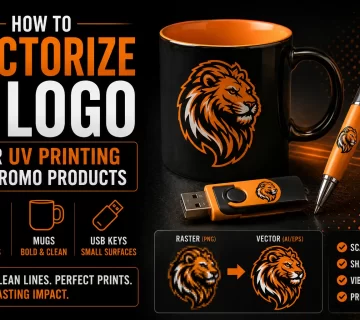
The solution to all of this is vectorization: converting your raster AI image into a real vector file. Once vectorized, your logo:
- Scales infinitely without quality loss
- Works on cutting, embroidery, and CNC machines
- Separates cleanly for spot-color printing
- Allows easy color editing and variants
- Gets accepted by any printer or production process
There are three main ways to vectorize an AI logo:
1. Free auto-tracers. Online tools or Illustrator’s Image Trace. Cheap and fast. Works for simple, high-contrast logos. Often produces messy results for complex AI-generated images with gradients, anti-aliasing, or fine detail.
2. DIY in Illustrator. Manual cleanup of an auto-traced result, or fully redrawing the logo in Illustrator yourself. High-quality if you have design skills, but time-consuming.
3. Professional vectorization service. A designer hand-redraws your logo as clean vector paths and delivers the result in multiple formats (SVG, AI, EPS, PDF) within 24-48 hours. Best quality, fastest path to production-ready, requires no design skills on your part.
For real production use (especially if your design has any complexity or you don’t have hours to spend cleaning up auto-trace results), professional vectorization is usually the right choice. The cost is small relative to the production run, and the quality difference is dramatic.
Why Auto-Trace Often Falls Short on AI Images
A common shortcut: take the AI PNG, run it through a free auto-tracer, hope for the best. Sometimes this works, especially for very simple logos. Often it doesn’t:
Anti-aliased edges create chaos. Free auto-tracers either flatten soft edges (losing detail) or trace each color band separately (creating dozens of unnecessary paths).
Gradients become bands. AI loves to add subtle gradients. Auto-trace can’t decide where one color ends and another begins, producing banded or muddied results.
Fine details fragment. Thin lines may disappear or break into chains of disconnected slivers.
Text becomes garbage. Letterforms get traced as random curves, not editable text.
Files need cleanup anyway. Even “successful” auto-trace results usually need significant cleanup to be truly print-ready: removing stray nodes, joining broken paths, simplifying complex curves, fixing colors.
For complex AI logos, the time spent fixing auto-trace output often equals or exceeds the cost of professional vectorization in the first place.
How to Avoid This Problem in the First Place
If you’re starting a new logo project with AI, here are tips to make your design easier to vectorize from the start:
Prompt for simple, flat designs. Use words like “minimal,” “flat,” “logo style,” “vector style,” “clean line art.”
Specify solid colors with no gradients. “Maximum 3 solid colors, no gradients, no shadows, no glows.”
Avoid photorealism. Skip “3D,” “metallic,” “embossed,” “glossy,” “realistic” prompts.
Don’t include text in the image. Generate just the symbol/icon. Add real, editable type in a vector editor afterward.
Aim for bold, distinctive shapes. A logo with one strong element vectorizes much better than one with twenty tiny accents.
Generate at the highest resolution available. Better source = better vector.
Iterate to clean designs. Pick the cleanest, simplest version that captures your vibe, not the most ornate.
A well-prompted AI logo will vectorize cleanly. A busy, photorealistic, gradient-heavy AI logo will be a struggle no matter what method you use.
Real-World Example: A Print Job That Almost Failed
A small soap company generated a beautiful AI logo with Midjourney: a watercolor-style botanical illustration with soft gradients and subtle shadows. They sent the PNG to their packaging printer.
The printer responded: “We need a vector file. This won’t print at the quality you want.”
They tried free auto-tracing. The result was a mess of fragmented paths and muddy colors that didn’t capture the elegance of the original.
They tried Illustrator’s Image Trace and spent hours fighting with settings. The output was passable but lacked the watercolor quality they loved.
Finally they sent it to a professional vectorization service. Within 24 hours, they had a polished vector logo that captured the watercolor feel as clean, paintable vector layers. Their packaging printed gorgeously, and they had clean files for every other use case (web, social, business cards, embroidered robes).
Total cost: about $30 for the vectorization. Total time saved: probably 8-10 hours of DIY frustration. Quality difference: the difference between “this might pass” and “this looks like real branding.”
Bottom Line
If your AI-generated logo isn’t printing properly, the issue is the file format. Raster (PNG) doesn’t work for serious production; vector does. The fix is vectorization, converting your AI PNG into a clean vector file.
Free tools work for simple cases. DIY in Illustrator works if you have the time and skills. Professional vectorization works for everyone, especially for logos that need to look polished and work across many production scenarios.
If you have an AI-generated logo that’s been giving you printing problems, send it to us. We’ll hand-redraw it as clean, scalable vector files in every format you need (SVG, AI, EPS, PDF) within 24 hours. Production-ready, polished, and ready to use anywhere.
Your logo shouldn’t be limited to the screen it was born on. Let’s make it print-ready.
)