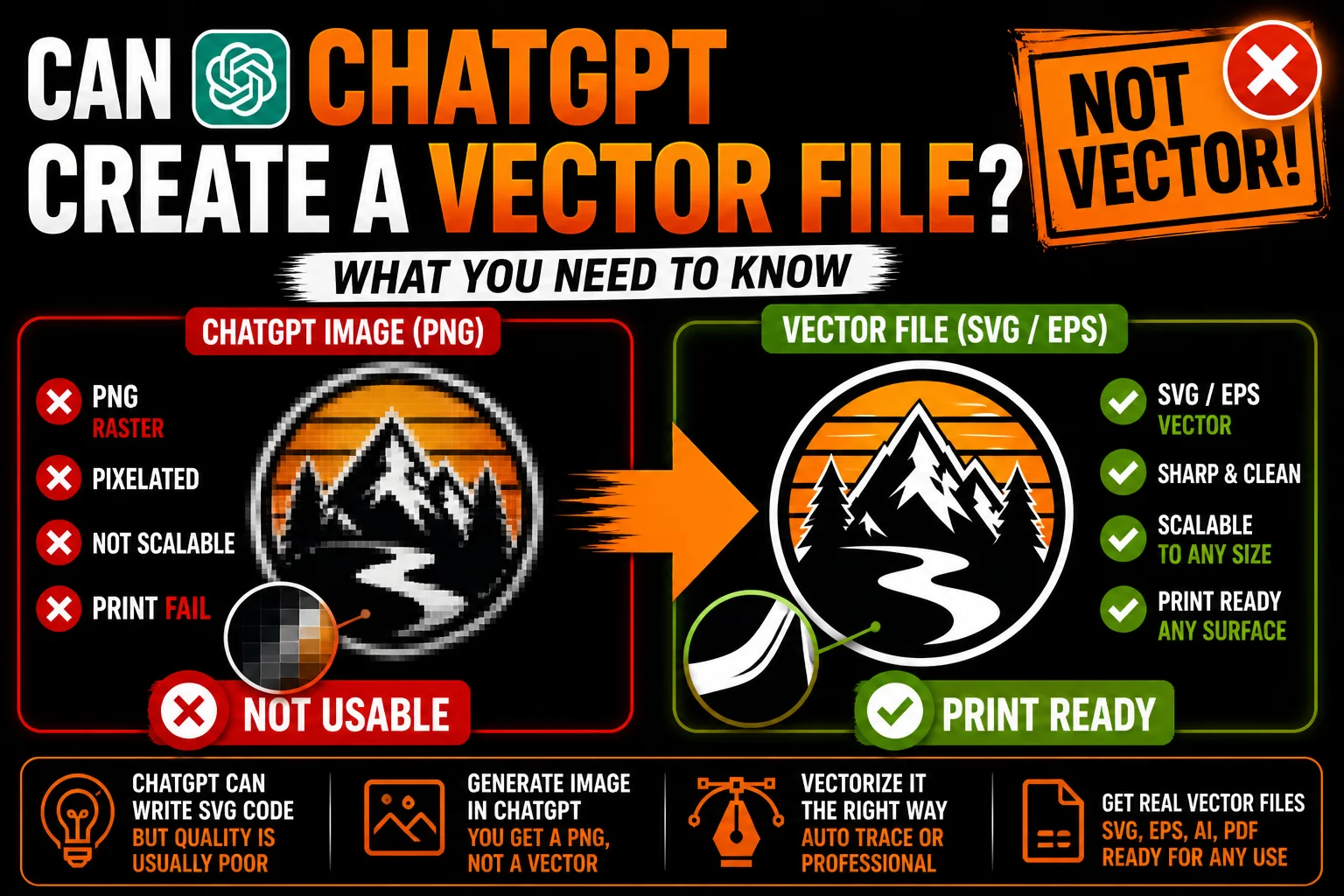
Can ChatGPT Create a Vector File? What You Need to Know
ChatGPT can write SVG code, but an SVG extension alone does not establish that a logo is accurate or suitable for production. Image generation and vector code are different workflows. Inspect the resulting paths, text and any embedded images, then validate the file with the supplier who will use it.
A request for a vector file usually appears when a concept is ready for printing, embroidery, manufacturing or detailed editing. At that stage, the file must do more than carry an SVG extension. Its objects, lettering and embedded assets need to match the approved logo and satisfy the requirements of the supplier who will produce it.
The answer is yes for SVG code, with important checks before use. ChatGPT can write markup describing vector shapes. That is different from generating a raster image such as a PNG. Either result needs inspection: compare the design with your brief, check the lettering and determine whether the actual objects suit your intended production process.
Let’s clear up the confusion and walk through what actually works when you need a vector file from an AI-generated design.
What “Vector File” Actually Means
Before we go further, a quick check on terminology. A vector file is a graphic that’s built from mathematical descriptions of shapes (paths, curves, points) rather than pixels. The most common formats are:
- SVG (.svg): web-friendly, opens in browsers and editors
- AI (.ai): Adobe Illustrator’s native format
- EPS (.eps): a format still requested in some production workflows; confirm compatibility
- PDF (.pdf): can be vector when properly created
Vector paths can be resized without adding pixels, and their individual shapes remain editable. The format may also contain raster images, which retain their own resolution limits. Fine details still need to be readable at the finished size, and the exported file must meet the recipient’s specifications.
Cutting operations need appropriate paths, while embroidery needs a stitch file created through digitizing. Some printing workflows can use raster artwork at suitable dimensions. Ask the supplier what preparation is required rather than assuming every production job demands the same file.
What ChatGPT Can Do (Strictly Speaking)
ChatGPT has two relevant abilities here, and they’re often confused.
Ability 1: Generate raster images. A downloaded PNG consists of pixels, even when it depicts a clean logo. It can be edited and may be printed at an appropriate size, but it is not a set of scalable paths. Check the actual download and intended application before deciding to trace it.
Ability 2: Write SVG code. When you specifically ask ChatGPT for SVG code, it’ll write you XML markup that defines vector shapes. This is technically a vector file. You can save it as .svg and open it in a vector editor. Whether it’s useful is another matter.
The confusion often comes from treating the image preview and SVG code as interchangeable. Inspect which output you received before judging whether conversion or refinement is needed.
Trying ChatGPT for SVG Code: The Reality
Let’s say you want a vector logo. You ask ChatGPT directly:
“Write SVG code for a clean, minimalist mountain logo for an outdoor gear brand.”
You’ll get something back. Save it as mountain.svg. Open it. What do you see?
The result might be a simple group of geometric shapes or a more detailed composition. Compare it with the brief: does the silhouette communicate the intended idea, does the spacing look balanced, and is the business name correct? Saving code as SVG establishes a file type, not the quality of the design.
Simple geometric symbols can be a practical use of generated SVG. More distinctive artwork needs closer review of the composition, curves and lettering. Complexity alone does not determine whether the result is usable.
Before accepting generated SVG, check the following rather than assuming the code is a finished logo:
- Render the SVG and compare the visible result with your written brief.
- Examine balance, spacing and line weight at the actual application size.
- Inspect the curves and any embedded raster objects in a vector editor.
- Revise and render again after changes, then compare with the approved version.
The output may be useful or may need substantial refinement. A visual and technical review establishes what is ready, what needs correction and whether a different workflow is more appropriate.
Trying ChatGPT’s Image Tool: A Different Problem
The image-generation route can be useful for exploring visual styles and compositions. Its preview may look polished, but the format still matters. Before using the selected image as a logo, download it and inspect the source rather than relying on the appearance in the conversation.
If the output is a PNG, it contains pixels. Tracing or reconstruction can turn suitable flat shapes into paths when required. Do not treat a newly supplied SVG as an exact conversion until you compare its objects and appearance with the approved image.
The two workflows therefore need different checks before the artwork is accepted:
- SVG code path: inspect the rendered design and verify the actual vector objects.
- Image tool path: check pixel dimensions and decide whether the intended use requires tracing.
For a selected raster concept that needs editable paths, add a vectorization step and review the result afterward.
The Workflow That Actually Produces a Usable Vector File
If your selected concept is a raster image and your supplier needs vectors, this four-step workflow provides a practical starting point:
Step 1: Select the approved design. Use your brief to choose a direction and check its spelling and proportions. If you already have usable SVG code, inspect that first rather than unnecessarily generating and retracing a new image.
Step 2: Download the PNG at maximum resolution. Better source image = better vectorization later.
Step 3: Vectorize the image when needed. Choose a method that preserves the approved shapes and allows corrections. Two common routes are:
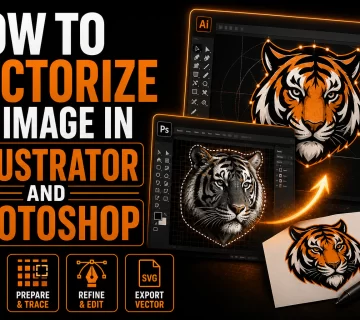
- Automatic tracing with review. Place the image in Illustrator’s Image Trace or use another tracing workflow such as Inkscape’s Trace Bitmap. Adjust settings and inspect the paths. A simple, high-contrast design may trace well; detailed artwork may require substantial cleanup.
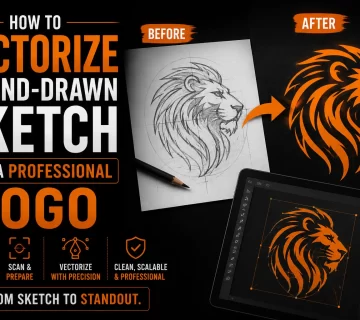
- Professional vectorization. Send the image to a vectorization service. A designer hand-redraws it as clean vector paths. The output is polished, editable, and production-ready.
Step 4: Prepare the required formats. Confirm whether your recipients need SVG, AI, EPS or PDF. Check single-color, reversed and simplified variants where appropriate. Embroidery requires separate digitizing; no extension alone guarantees production suitability.
This four-step workflow is what’s actually working for solopreneurs, small business owners, and small agencies who want the speed of AI without sacrificing the quality of professional brand assets.
Why Some AI Images Need More Than Auto-Trace
A common question is whether an automatic trace can replace manual reconstruction for the selected image. The answer depends on the source and the result:
Sometimes yes, often no. Auto-tracing fails or produces poor results when:
- The image has gradients, shadows, or atmospheric effects (very common in AI output)
- The edges contain soft color transitions that produce unwanted intermediate shapes
- There are subtle color variations the tracer can’t simplify cleanly
- Text contains errors or shapes that need rebuilding as accurate lettering
- Fine details need to remain sharp at small sizes
- The image needs to be re-colored or modified after vectorization
Auto-trace works best on logos that are already very simple: bold black-and-white silhouettes, basic geometric icons, single-color marks. For anything else, the result usually needs heavy cleanup or a full redraw to be usable.
When the SVG Code Approach Is Actually Fine
To give ChatGPT credit, there are real cases where its direct SVG generation works:
Simple icons. Arrows, checkmarks, basic UI symbols. These are mostly geometric and ChatGPT handles them well.
Placeholder graphics. For mockups, wireframes, or temporary fillers, you don’t need polish.
Geometric patterns. Repeating shapes, grids, simple decorative motifs. ChatGPT can generate these accurately.
Learning purposes. If you’re trying to understand how SVG works, ChatGPT is a great explainer.
When generated SVG already meets the brief and contains suitable paths, additional vectorization may be unnecessary. For a raster concept, tracing or reconstruction remains an option. In both cases, compare the artwork with the business’s intended applications before treating it as the final master.
Tips to Get Better Results Throughout the Workflow
Whatever tool path you take, here’s how to maximize your final vector quality:
Prompt for simplicity. Tell ChatGPT “minimal, flat, two colors, no gradients, no shadows” when generating. Simpler images vectorize cleaner.
Avoid photographic style. Realistic shading and lighting are great for art, terrible for logo vectorization. Stick to “logo style,” “icon style,” “flat design,” “line art.”
Generate at high resolution. When ChatGPT offers higher-res output, use it. The cleaner the source, the cleaner the vector.
Check type separately. Generating a symbol first and adding editable text in a vector editor is one option. Verify the spelling and letter shapes regardless of the workflow used.
Pick one strong concept and refine it. Better to have one clean, vectorizable design than five busy ones.
What to Do With Your AI-Generated Design
If you already have a ChatGPT design for shirts, business cards or signage, inspect the source and ask the supplier for its requirements. You may need vectorization, a better raster source or refinement of existing SVG paths.
The useful next step is the one that closes the actual gap between the approved concept and the required production file. That decision should follow inspection, not a blanket assumption about every AI output.
Send us your generated design and describe the applications you have planned. We can review its contents, discuss any reconstruction needed and confirm the formats and variants to deliver. Approve the prepared artwork with your production supplier before the final run.
ChatGPT is great for ideas. Vectorization is what makes them real.
Technical sources: OpenAI : image generation output formats