White Background vs Transparent Background on Your Printed Logo: How to Fix It
You place your logo on a colored sign, a branded shirt or a photo, and an ugly white rectangle appears around it. Or worse, the printer sends a proof with a white box you never expected. This is one of the most common and avoidable logo problems, and it comes down to the difference between a white background and a true transparent one. This guide explains what is really happening and how to get a logo that drops cleanly onto any color or surface.
Key takeaways
- If your logo shows a white box, check whether it is saved as a JPEG or as a PNG with a white layer baked in.
- Test your logo on a colored background, since a white web page hides the white rectangle until it goes to print.
- Keep a white or reversed version for dark surfaces, because a dark logo disappears on dark even with transparency.
White Background vs Transparent: The Real Difference
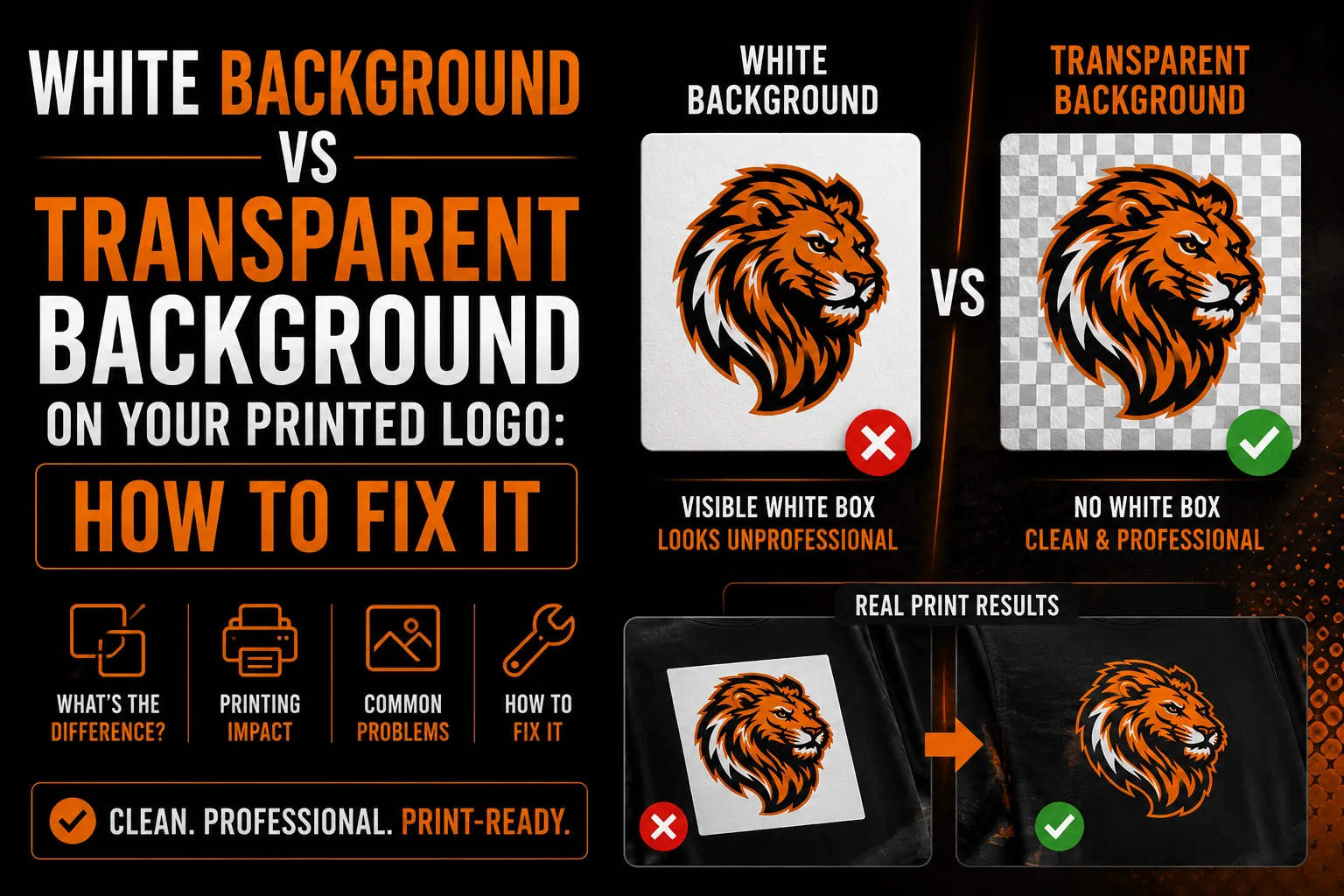
A logo with a white background is sitting on a solid white rectangle that is part of the image. A logo with a transparent background has no rectangle at all, so whatever is behind it shows through. JPEG files cannot store transparency, so they always carry a background, usually white. PNG and SVG files can store transparency. If your logo keeps showing a white box, it is almost certainly saved as a JPEG, or as a PNG that still has a white layer baked in.
Why It Looks Fine on Screen but Bad in Print
On a white web page, a white background is invisible, so the problem hides. The moment you place that logo on a colored background, a photo or a garment, the white rectangle suddenly appears. This is the same on-screen-versus-real-world gap we describe in our article on why logos can look fine on screen but fail in production. The logo never changed; the background revealed the flaw.
The Fake Transparency Trap
Sometimes a PNG looks transparent in a preview but still prints with a white edge or halo. This happens when the transparency was added carelessly, leaving a faint white fringe around the logo, or when the file was flattened against white at some point. A quick erase or background removal often leaves these artifacts behind, which is why a clean, properly built file matters.
Why Vector Files Solve This Permanently
A vector logo has no background at all by nature. It is a set of defined shapes floating on nothing, so it drops cleanly onto any color, photo or material with no rectangle and no halo. When you need a transparent PNG for digital use, it is exported correctly from the vector master with genuinely clean edges. This is one more reason owning a vector master, as explained in our guide on logo quality at every size, prevents a whole category of problems.
Get a Logo With No White Box
We deliver a truly transparent logo plus a reversed version for dark backgrounds, with clean edges.
See vectorization service →Knockout Versions for Dark Backgrounds
Transparency alone is not always enough. A dark logo on a dark background disappears even with a transparent file. That is why you also need a white or reversed version of your logo for dark surfaces. A proper logo set includes both, so your mark stays visible whether it sits on light or dark.
How to Get a Clean, Background-Free Logo
Professional vectorization rebuilds your logo as clean vector shapes and delivers a true transparent PNG plus the vector masters, with no white box and no fringe. You also receive the reversed version for dark backgrounds. From then on, your logo behaves predictably on every surface and every color.
One Clean File, No More Surprises
Once you have a properly built, background-free logo, the white-box surprise is gone for good, on signs, shirts, photos and slides alike. You send a clean file and it sits perfectly every time, wherever your brand appears. That reliability is part of the broader value of proper vectorization.
How to Check Your Logo for a Hidden White Box
You can test your own file in seconds. Drop your logo onto a brightly colored slide or document background. If a white rectangle appears around it, your file has a background baked in and is not truly transparent. If you see a faint white outline or halo right at the edges, the transparency was added sloppily. A clean, properly built logo sits on the color with no box and no fringe at all. This simple check, done before you send the file to any printer, prevents the surprise proof problem and the on-screen-versus-print gap we describe in our article on logos that fail in production.
Transparency in Office Documents and Slides
The white-box problem shows up constantly in everyday documents too. A logo with a hidden background looks clumsy on a colored slide, a letterhead or a proposal cover. A truly transparent PNG or an SVG drops cleanly into presentations and documents, making your materials look polished and intentional. Because these files are exported correctly from your vector master, you get consistent, professional results whether the logo lands on a billboard or a sales deck. Small visual details like this shape how seriously clients take your business.
Why a Reversed Logo Completes the Set
Transparency solves the box, but visibility is a separate issue. A dark logo placed on a dark photo or a black garment can vanish even with a transparent background. That is why a complete logo set always includes a reversed, usually white, version designed for dark surfaces. Having both the transparent full-color logo and the reversed version means your mark stays clear and confident on any background, light or dark, which is exactly the kind of completeness a proper vectorization service delivers.
Why a Clean Logo Protects Your Professional Image
The white-box problem seems small until you notice it on a client’s screen during a proposal, on a colored sign or in a printed brochure. Each time it appears, it chips away at the polished image you are working to project. A truly clean, background-free logo removes that risk everywhere your brand shows up. Whether you operate in Montreal, across Quebec, throughout Canada or with international clients, a properly prepared logo drops cleanly onto any background, photo or material, so your business always looks intentional and professional. That reliability matters because customers form impressions from exactly these small visual details. Getting your logo right once, with true transparency and a reversed version for dark surfaces, means you never again have to worry about an awkward white box undermining an important document, a sign or a presentation in front of the people you most want to impress.
A Quick Process to Get a Truly Clean Logo
Eliminating the white-box problem for good is simple once you know the steps. This is what a proper fix involves and why it solves the issue permanently rather than patching it.
- Your logo is rebuilt as clean vector shapes with no background at all.
- A genuinely transparent PNG is exported with no fringe or halo.
- A reversed (usually white) version is created for dark surfaces.
- Edges are checked at high zoom to confirm they are clean.
- You receive both the vector masters and ready-to-use transparent files.
After this, your logo drops cleanly onto any color, photo, garment or slide, every time, with no surprises. That predictable, professional behavior on every surface is part of the value a proper vectorization service provides.
Related reading: Podcast Cover Art and Logo: Designed to Survive a 200-Pixel Thumbnail · Why Your Logo Has a White Box Around It and How to Remove It
Frequently Asked Questions
Why does my logo have a white box around it?
Because it has a white background baked into the image rather than a transparent one. JPEG files cannot store transparency, so they always carry a background. If your logo shows a white box, it is likely a JPEG or a PNG with a white layer still in it.
What is the difference between white and transparent backgrounds?
A white background is a solid white rectangle that is part of the image. A transparent background has no rectangle, so whatever is behind the logo shows through. PNG and SVG support transparency; JPEG does not.
Why does my logo look fine online but show a box in print?
On a white web page, a white background is invisible. When placed on a colored background, photo or garment, the white rectangle suddenly appears. The logo did not change; the new background revealed the hidden box.
Why does my transparent PNG still print with a white edge?
This usually means the transparency was added carelessly, leaving a faint white fringe or halo, or the file was flattened against white at some point. A properly built vector file exported correctly avoids these artifacts.
How do I get a logo with a truly transparent background?
Have your logo professionally vectorized. A vector logo has no background by nature and exports to a clean transparent PNG with no white box or fringe, plus a reversed version for dark backgrounds.