Why AI Product Renders Keep Changing Your Logo
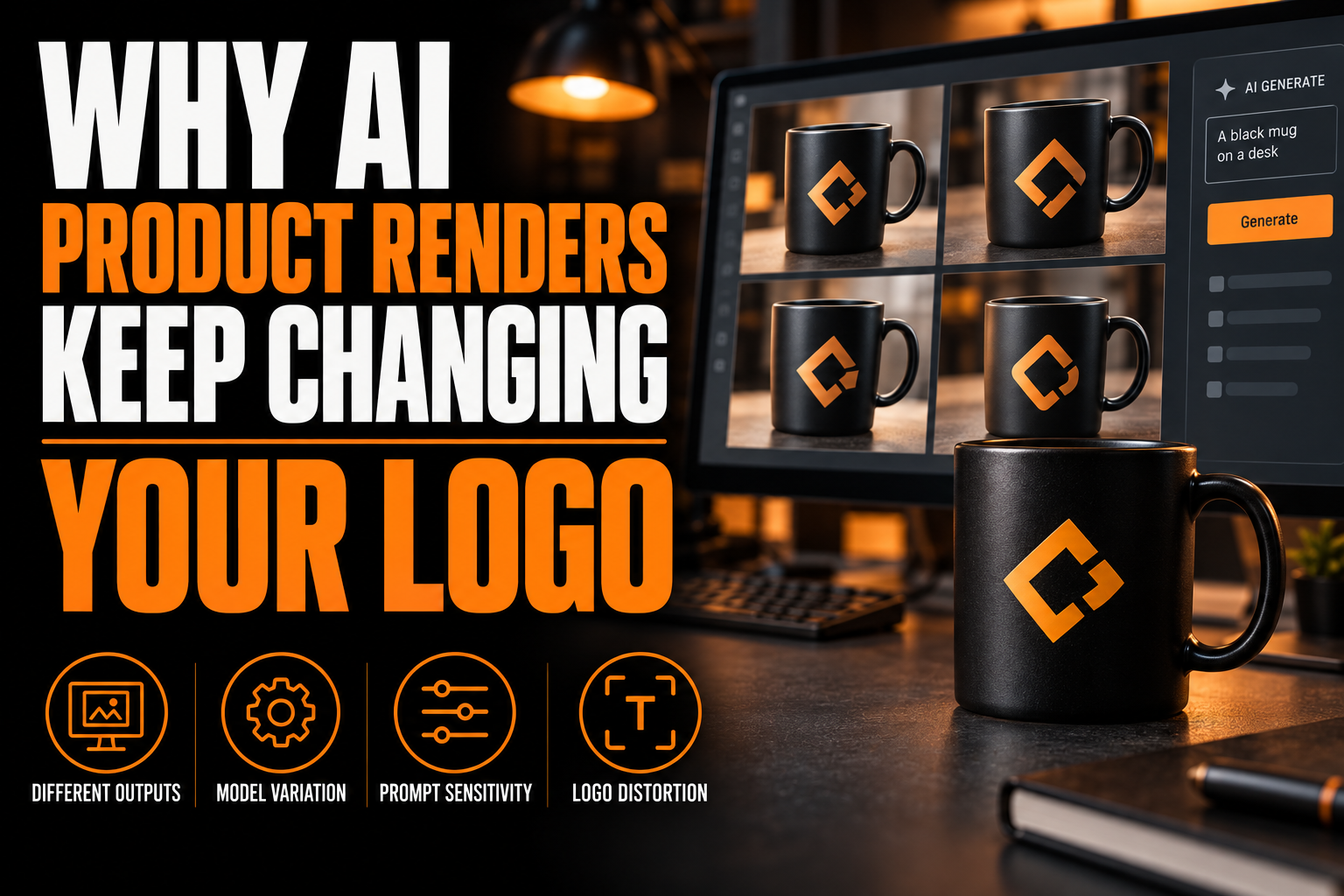
AI product renders keep changing your logo because image generators like Adobe Firefly rebuild the entire scene from scratch on every attempt, including any brand mark inside it. No current AI tool, Firefly included, guarantees pixel-exact logo reproduction across renders. The fix is not a better prompt: it is keeping your logo out of the generation step entirely and placing the real file on top afterward.
Key takeaways
- Keep your logo out of the generation step and place the real file on top afterward, since AI tools redraw it every time.
- Switching to another AI generator will not fix logo drift, since every mainstream tool predicts pixels from a prompt.
- Build a locked vector master with fixed colour values and an icon-only variant that you can drop onto any render.
This article covers why the drift happens, what a Firefly alternative can and cannot promise, and the file-based workaround that print shops and packaging teams already use to keep a mark exact on every mockup.
Why do AI tools redraw your logo differently every time?
AI tools redraw your logo differently every time because they do not store it as a fixed file. Each render is a fresh interpretation from a text prompt, so asking for the same shot 3 times produces 3 different results, not 3 copies.
Adobe’s own documentation for Style Reference in Firefly confirms this by design: a reference image comes with a strength value between 1 and 100, defaulting to 50, that controls how closely the output follows it. That is an influence dial, not a lock. At strength 100 the render still redraws the scene; it simply leans harder on the reference while doing it.
Is there a Firefly alternative that keeps branding exact?
No mainstream AI generator, including Firefly and Midjourney, reproduces an uploaded logo pixel for pixel across multiple renders. Every one works the same way: it predicts pixels from a prompt, not from a locked vector file. Switching tools changes the style of the drift, not whether it happens.
This is why a business that needs 1 exact logo across 10 or 20 product renders is usually asking the wrong tool for the wrong job. Generation is good at building a believable scene around a product. It is the wrong layer for the one graphic element that has to stay identical every time.
What actually keeps your logo exact across AI product renders?
The fix flips the usual order. Let the AI generate the background and product surface, then place your real logo file on top as a flat, non-generated layer, the way a mockup template drops art onto a shirt. The logo never passes through the model, so it never gets reinterpreted.
That only works cleanly if the logo exists as a proper vector file to begin with. A screenshot or a low-resolution export pulled from a website will look soft or pixelated the moment it is placed at product scale, which defeats the purpose of skipping the AI redraw in the first place. A clean vector version of your logo resizes to any product surface without losing edges or colour accuracy, which is exactly what a flat overlay needs.
What mistakes cause a distorted logo in an AI product mockup?
3 mistakes show up repeatedly once a business starts generating product renders in volume.
The first is uploading a JPEG screenshot of the logo as the style reference and expecting the model to trace it exactly. A reference image only steers the render, so fine details, thin strokes, and exact colour values still get reinterpreted or dropped.
The second is skipping a side-by-side check against the brand’s real colour values. A render can look close enough on a phone screen and still be several shades off from the approved Pantone or hex code once it reaches a product listing or a print proof.
The third is regenerating the same product shot repeatedly, hoping the logo will eventually land correctly. Every regeneration is an independent roll, not a refinement, so persistence alone does not converge on an exact match. It usually produces 4 or 5 slightly different wrong versions instead of 1 right one.
How do you build a logo file that survives being composited onto any render?
Build the logo file once, correctly, instead of patching it per project. A locked vector master, with fixed colour values and a simplified icon-only variant, scales to a can label, tote bag, or storefront render without being redrawn each time.
The file itself has to be built once, correctly, rather than patched per project. A locked vector master, with defined colour values and a simplified icon-only variant, can be scaled to a can label, a tote bag mockup, or a storefront render without a designer redrawing it each time. Our guide to the AI logo consistency problem covers the same root cause from the angle of AI-generated logo concepts drifting between requests, which is the same mechanism behind renders changing a finished logo.
Colour is the detail teams skip most often. A brand’s exact hex or Pantone value, saved once and handed to whoever builds the mockup or overlay, removes the guesswork that a generative tool cannot resolve on its own. A properly vectorized logo file keeps that colour value attached to the file itself, so it travels with the mark instead of being re-eyeballed on every new render.
A logo file built to sit exactly the same on every render
We convert your logo into a clean vector master file so it can be dropped onto any product mockup or AI-generated scene without being redrawn, blurred, or recoloured.
Where does this same problem show up beyond product photography?
The same drift affects AI-assisted packaging concepts, not just single product shots. These tools help with early exploration, but stop being reliable once a design needs to be locked and reproduced exactly, the same limit this article describes for product renders.
Our article on whether AI can generate logo ideas and packaging concepts walks through why these tools are useful for early exploration but stop being reliable the moment a design needs to be locked and reproduced exactly, which is the same limit this article is describing for product renders. If you are evaluating Firefly specifically for the concept stage rather than final production, our hands-on test of Adobe Firefly for logo design covers where it is genuinely useful and where a vector file still has to take over.
What to check before you approve another AI-generated product render?
Check these 5 points before approving any AI-generated product render, since none of them are guaranteed by the tool automatically.
- No current AI generator, Firefly included, reproduces an uploaded logo pixel for pixel across separate renders.
- Style Reference in Firefly is an adjustable strength control from 1 to 100, not a lock on the reference image.
- Compositing a real vector logo file onto an AI-generated background keeps the mark exact because it skips the generation step entirely.
- A locked vector master with a saved colour value removes the guesswork a generative tool cannot resolve.
- Regenerating the same prompt repeatedly produces new variations, not a converging match to your real logo.
What should you ask before trusting an AI render with your logo?
Why do AI product renders keep changing my logo specifically?
AI product renders change your logo because the generator treats every pixel, including your brand mark, as something to reinterpret from a prompt, not copy exactly. A reference image only guides style at an adjustable strength, so details and colours shift between attempts.
Can I fix this by writing a more detailed prompt?
A more detailed prompt improves a render’s composition, but it cannot force pixel-exact logo reproduction, since the model still generates new pixels instead of copying a file. The reliable fix is placing your real vector logo on top of the scene instead of asking the model to draw it.
Does increasing the Style Reference strength in Firefly solve the problem?
Raising the strength value toward 100 makes the render lean more heavily on your reference image, but it still regenerates the scene rather than locking it. It reduces drift somewhat without eliminating it, which is not the same as an exact match.
What file format do I need to overlay my logo on a render instead?
A vector file in SVG, AI, or EPS format works best, since it scales to any product surface without losing edge sharpness or colour accuracy. A high-resolution PNG with a transparent background is an acceptable substitute if a true vector file is not yet available.
Is this the same problem as AI generating a new logo concept each time?
It is the same mechanism, generation without memory of the prior output, applied to 2 situations: one is an AI drawing a fresh logo concept, the other is an AI redrawing a logo inside a product scene. Both are solved the same way, by locking the mark into a file.