Can ChatGPT Make Vector Files? The Honest Answer
If you’ve been searching for a quick way to get vector graphics out of ChatGPT, you’ve probably gotten conflicting answers. Some blogs say “yes, just ask it for SVG code!” Others say “no, ChatGPT only makes PNGs.” Both are right, and both are misleading.
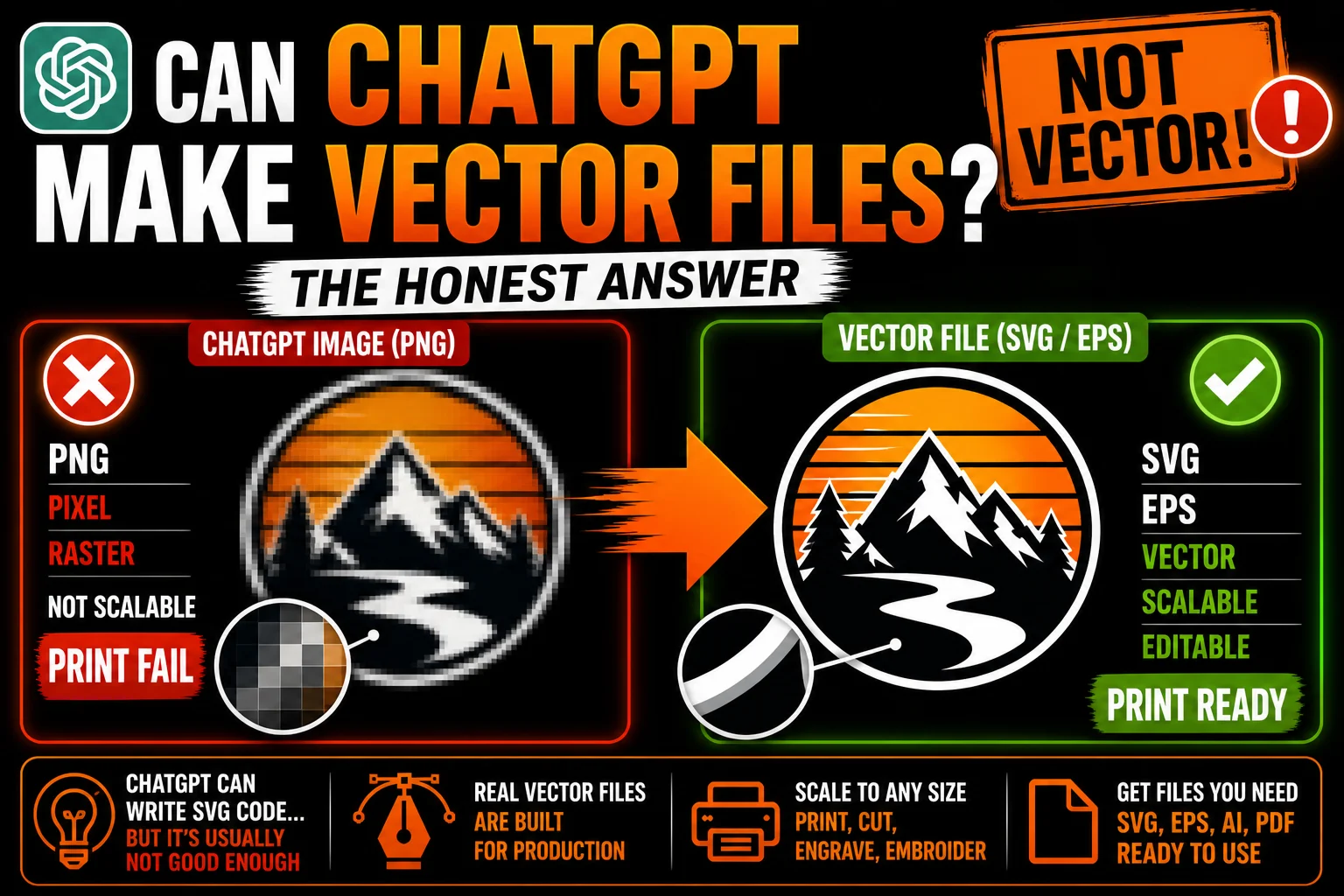
Here’s the real, no-nonsense answer: ChatGPT can write SVG code, but it almost never produces a vector file you’d actually want to use. And when ChatGPT generates an image (using its built-in image tool), that image is a PNG, not a vector file at all.
If you’re trying to vectorize a logo, illustration, or design that ChatGPT created, this article walks through exactly what works, what doesn’t, and how to actually get a print-ready vector file from an AI-generated image.
Two Different Things People Mean by “ChatGPT Vector File”
There’s confusion baked into this question because ChatGPT can do two completely different things:
1. Generate an image. When you prompt ChatGPT to “create an image of a fox logo,” it uses its image generation model (DALL·E or its successor) to produce a PNG. That PNG is a raster file, not a vector. It has pixels, not paths.
2. Write SVG code. When you prompt ChatGPT to “write SVG code for a fox logo,” it tries to write the XML markup that describes vector shapes. The result is technically a vector file, but the visual quality is usually rough.
These are completely different workflows, with completely different output. Most people who ask “can ChatGPT make vector files” are actually mixing them up.
What Happens When You Ask ChatGPT to Make an Image
Type “create an image of a vintage motorcycle logo” into ChatGPT. You’ll get a beautiful, detailed image back. Right-click, save. What did you save?
A PNG file. Pixels. Raster. Not a vector.
This is the same regardless of how you prompt it. ChatGPT’s image tool produces raster images, full stop. It cannot natively export SVG, AI, EPS, or any other vector format from its image generator. There’s no setting, no trick, no prompt engineering hack that flips the switch. The model isn’t built that way.
If you take that PNG to a printer for screen printing, embroidery, vinyl cutting, large-format printing, or product manufacturing, you’ll be told you need a vector file. That’s where the workflow breaks down.
What Happens When You Ask ChatGPT to Write SVG Code
This is where it gets interesting. SVG is a text-based format, so theoretically a language model can write it. Try it: ask ChatGPT for “SVG code for a simple house with a triangular roof.”
You’ll get something like:
<svg viewBox="0 0 100 100">
  <rect x="20" y="50" width="60" height="40" fill="lightblue"/>
  <polygon points="20,50 80,50 50,20" fill="red"/>
  <rect x="40" y="65" width="15" height="25" fill="brown"/>
</svg>
Save that as house.svg and open it in a browser. You’ll see a recognizable, very basic house. So yes, this is technically a vector file. It scales infinitely. It can be opened in Illustrator. It works.
But here’s the catch. Try asking for something even slightly more complex, like “SVG code for a wolf head logo in a circle” or “SVG of a coffee cup with steam rising.” You’ll get code, sure. The result will look like a stick figure or a geometric mess. ChatGPT is writing this code essentially blind. It has no visual feedback while generating. It can’t see what it’s drawing. It just predicts what shape coordinates might match the description.
For anything beyond basic geometric shapes, ChatGPT-generated SVG code is rarely usable.
Why ChatGPT Struggles with Real SVG
Three reasons, technically speaking:
No visual feedback loop. When a human designer draws in Illustrator, they look at what they’re drawing and adjust. ChatGPT writes coordinates and curves into a code editor, then stops. It never sees the result.
Vector design is spatial. A logo isn’t just shapes, it’s the relationship between shapes. Negative space, alignment, balance, proportion. These are visual judgments that don’t translate well to text-prediction.
SVG paths are mathematical. Drawing a curve in vector requires understanding cubic Bezier control points and how they bend a line. ChatGPT can write the syntax, but generating the right control points to make a curve look elegant is closer to a visual skill than a language skill.
The result is that ChatGPT SVG output looks “kindergarten.” Recognizable in concept, useless in execution.
The Workflow That Actually Works
If you want a real, professional vector file from work you started in ChatGPT, here’s the workflow that actually delivers:
Step 1: Generate the image in ChatGPT. Use the image tool. Get the best PNG you can. Refine the prompt, regenerate, iterate. You’re aiming for an image you genuinely love.
Step 2: Download the PNG at the highest available resolution. Cleaner source = cleaner vector.
Step 3: Vectorize the image. This is where the magic happens. There are two approaches:
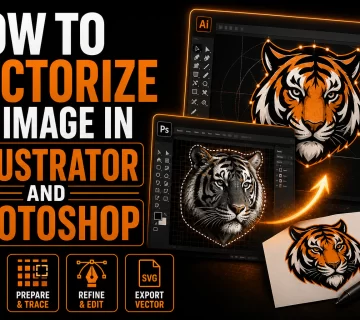
- Auto-trace tools. Adobe Illustrator’s Image Trace, Vector Magic, free online converters. These work mathematically, tracing the edges of color regions. They work okay for very simple, high-contrast designs (think: black silhouette on white background). They fail for almost anything else.
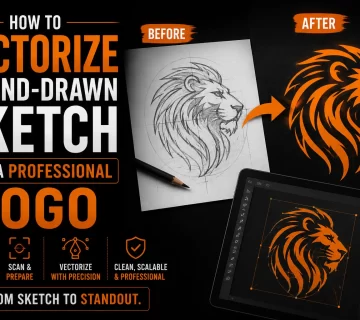
- Professional vectorization. A designer redraws your image by hand as clean vector paths. Every curve is intentional. Every color is editable. The result is a true, production-ready vector that scales, prints, and edits beautifully.
Step 4: Receive vector files in every format you need. SVG for web, AI for designers, EPS for older print workflows, PDF for universal compatibility, single-color versions for one-color printing.
This is the workflow used by virtually every freelancer and small business that’s making AI-assisted branding actually ship. AI does the creative exploration. Vectorization makes it real.
Why Auto-Trace Often Fails on AI Images
A common shortcut people try: take the ChatGPT PNG, run it through a free auto-tracer, call it a day. Why doesn’t this usually work?
AI images have anti-aliased edges. Look closely at any ChatGPT-generated image and you’ll see soft, fuzzy edges, gradients of color where one region meets another. Auto-tracers see these soft edges as dozens of intermediate colors and produce hundreds of tiny, messy paths.
AI loves gradients and shadows. Almost every AI image has subtle gradients, atmospheric lighting, and shadows. Auto-tracers struggle to know where one color ends and another begins.
Thin lines disappear or fragment. A clean black outline in the original might become a chain of disconnected slivers in the auto-trace.
Text becomes garbled. Any letterforms in the image get traced as random curve paths, not as actual editable text. They look “almost right” but can’t be edited.
For a logo or branding asset that needs to look good on a product, a billboard, or a business card, auto-trace is rarely good enough.
When ChatGPT SVG Code Is Useful
Let’s be fair to ChatGPT. There are situations where its direct SVG generation is genuinely useful:
Simple icons. Need a basic checkmark, arrow, gear, or geometric shape? ChatGPT can write that SVG perfectly fine.
Wireframe placeholder graphics. For mockups and prototypes, a simple ChatGPT SVG works as a stand-in.
Learning SVG. ChatGPT is a great tutor for understanding how SVG syntax works.
Combining shapes programmatically. If you describe a layout precisely (“three concentric circles, blue, white, red, centered at 50,50 with radii 30, 20, 10”), ChatGPT will execute it accurately.
For these limited use cases, ChatGPT’s SVG ability is genuinely handy. But for anything resembling a real logo, illustration, or production design, it’s not the right tool.
Don’t Forget: PDF Vector vs PDF Raster
One subtlety worth mentioning. ChatGPT can sometimes export images as PDFs, and people assume PDF means vector. It doesn’t. A PDF can contain either vector or raster content. A PDF wrapping a PNG is still a raster file in a PDF wrapper. It will not scale, edit, or print like a true vector PDF.
When a printer asks for a “vector PDF,” they mean one where the artwork inside is built from real vector paths. ChatGPT cannot produce this directly.
What to Do Right Now
If you have a ChatGPT-generated logo, illustration, or graphic that you need as a real vector file, the path forward is straightforward:
- Save the highest-quality PNG you can get from ChatGPT.
- Send it to a vectorization service (or run it through Illustrator’s Image Trace if it’s simple enough and you know what you’re doing).
- Get back clean vector files: SVG, AI, EPS, PDF.
- Use those files for any printing, embroidery, cutting, fabrication, or scaling task you need.
That’s the actual answer to “can ChatGPT make vector files.” The model itself can’t reliably produce production-ready vectors. But its image output, paired with professional vectorization, is a powerful combination that’s letting solo founders, small businesses, and freelancers create real branded assets faster and cheaper than ever.
If you have an AI-generated image and need it turned into clean, print-ready vector files, that’s exactly what we do. Hand-drawn vectorization, multiple formats, fast turnaround. Send us your ChatGPT image and we’ll send back vector files ready for any printer, embroidery shop, or manufacturer.