How to Vectorize an AI-Generated Logo for Printing
You generated a logo with ChatGPT, Midjourney, DALL·E, or another AI image tool. It looks fantastic on screen. Now you’re trying to print it, on shirts, business cards, packaging, signs, embroidered hats, vinyl stickers, you name it. And the printer or production company keeps asking for a vector file, which your AI tool didn’t give you.
This guide walks through exactly how to vectorize an AI-generated logo so it prints beautifully on anything. We’ll cover the workflow, the tools, the common pitfalls, and how to get a result that actually works in production.
Why AI Logos Need to Be Vectorized for Print
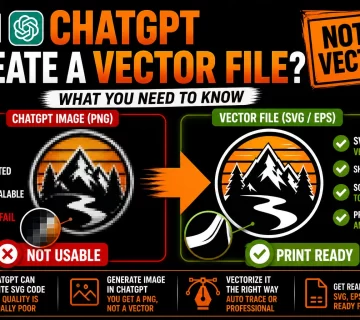
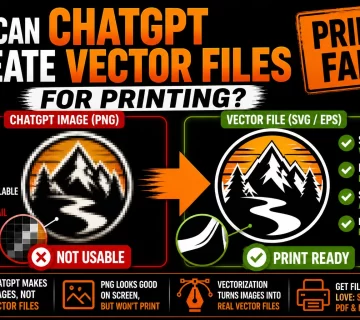
Every popular AI image generator (ChatGPT, Midjourney, DALL·E, Adobe Firefly, Stable Diffusion) outputs raster files: PNG, JPG, or WebP. These are flat grids of pixels. They look fine on screens at the size they were generated.
For printing, embroidery, sign-making, vinyl cutting, and product manufacturing, this format simply doesn’t work:
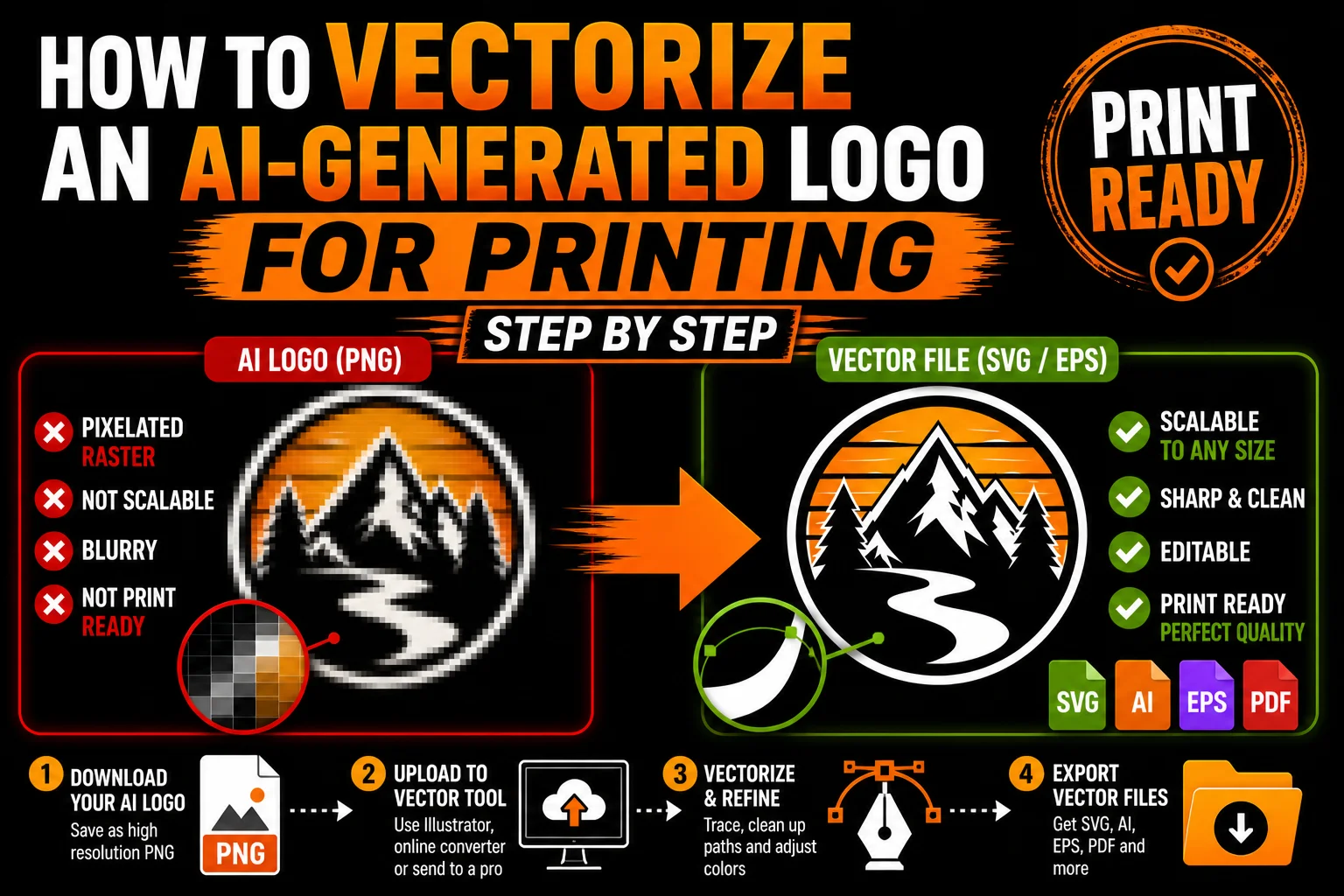
Scaling problems. Print a PNG logo at 2x its native size and it gets soft. Print at 5x and it looks blurry. Print at 10x for a banner or sign and it’s a pixelated mess.
Cutting and machine-based production. Vinyl plotters, laser cutters, CNC machines, and embroidery machines need vector paths. They literally cannot read pixel data. The PNG is invisible to them.
Spot color separation. Screen printing, pad printing, and high-end packaging printing separate designs into solid-color layers. Vectors do this naturally; PNGs require complex pre-press work to mimic.
Color flexibility. Need a black-only version, a white-on-black version, a single-color screen print, or a Pantone-matched version? Vectors let a designer change colors instantly. Rasters require full re-edits or recreation.
This is why printers, manufacturers, embroiderers, and sign makers always ask for vector files. It’s not gatekeeping; it’s the technical reality of production.
What Vectorization Actually Means
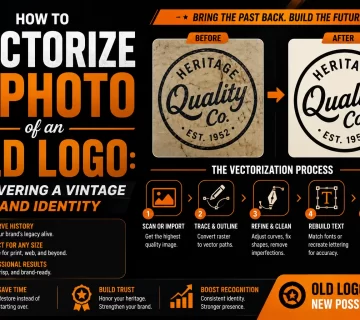
Vectorization (also called tracing) is the process of converting a raster image (your AI PNG) into a vector file (SVG, AI, EPS, or vector PDF). Instead of describing the image as a grid of pixels, the vector file describes it as mathematical paths, lines, curves, and shapes that scale infinitely.
There are two main approaches:
Auto-tracing. Software algorithmically detects edges and color regions in the image and converts them into vector paths. Fast, cheap, and works well for simple designs. Often messy for AI-generated images.
Hand-drawn vectorization. A designer manually redraws the image as clean vector paths, paying attention to design intent, optimal path construction, and production needs. Slower (and more expensive), but produces dramatically better results.
For AI-generated logos that you actually want to print on real things, hand-drawn vectorization usually gives you a final asset that’s truly production-ready. Auto-tracing is fine for simple cases or quick tests.
The Step-by-Step Workflow
Here’s the full process from AI prompt to print-ready vector file.
Step 1: Generate Your Logo in the AI Tool
Whatever AI you’re using (ChatGPT, Midjourney, DALL·E, Firefly), prompt it for your logo. A few tips that make later vectorization much easier:
- Use the words “logo,” “minimal,” “flat design,” “vector style,” or “clean line art.” These produce simpler output that vectorizes better.
- Specify limited colors. “Maximum 3 solid colors, no gradients, no drop shadows.”
- Skip photorealism. Realistic shading, lighting, and texture make for stunning art but bad logos.
- Keep text out of the image. AI-generated text is rarely typographically correct. Generate the icon/symbol only; add real type later in a vector editor.
- Iterate to clarity. Better to have one clean, distinctive design than five busy ones.
Step 2: Download at Maximum Resolution
Higher-resolution input means better vectorization output. If your AI tool offers a higher-res option, take it. Save the PNG (not JPG, which adds compression artifacts).
Step 3: Optional Cleanup Before Vectorizing
If your AI image has obvious issues (background noise, stray pixels, unwanted elements, text errors), clean these up in Photoshop or any image editor first. A cleaner input gives a cleaner vector output.
If your image has a busy background you want gone, isolate the logo against a clean white or transparent background. This makes vectorization dramatically smoother.
Step 4: Vectorize the Image
Three options, in order of cost and quality:
Free online auto-tracers (Vectorizer.io, PNG2SVG, etc.). Upload, click trace, download. Decent for very simple logos. Often messy results for AI images with anti-aliased edges, gradients, or fine details.
Adobe Illustrator’s Image Trace. Place your PNG, click Image Trace, choose a preset, tweak settings, click Expand to convert to editable paths. Better than free tools but still struggles with AI image quirks. Requires Illustrator and design skills to get a polished result.
Professional vectorization service. Send your PNG to a service that hand-redraws it as clean vector paths. Highest quality, fastest path to production-ready files, multiple formats delivered.
Step 5: Verify and Refine
Open the resulting vector file. Check:
- Are paths clean (not jagged, fragmented, or full of unnecessary nodes)?
- Do the colors look right? Are they solid or muddied?
- Is the text editable, or stuck as paths?
- Does it look right at small sizes (business card) and large sizes (banner)?
- Are there any artifacts that need cleanup?
If it’s auto-traced, expect to spend time fixing things. If it’s hand-vectorized, the result should already be clean.
Step 6: Export in Multiple Formats
Different production scenarios need different formats. Aim to have all of these ready:
- SVG for web, app icons, and modern workflows
- AI (Adobe Illustrator native) for designers
- EPS for legacy print workflows and older equipment
- Vector PDF for universal compatibility
- PNG (high-res) for situations where someone insists on raster
- Single-color version (often black) for embroidery, vinyl, one-color print
- White/reversed version for dark backgrounds
Having all of these ready means whoever you send your logo to, you’ll have the file they need.
Step 7: Send to Production
Hand off the appropriate file to your printer, embroiderer, sign maker, manufacturer, or other production partner. With a real vector file in their preferred format, the job will run smoothly and the output will look great.
Why Auto-Tracing Often Fails on AI Images
If you’ve tried free auto-tracers on a ChatGPT or Midjourney image, you’ve probably seen disappointing results. Here’s why this happens:
Anti-aliased edges. Every AI image has soft, blended edges where one region meets another. Auto-tracers either flatten these (losing detail) or trace each color band as a separate path (creating dozens of unnecessary shapes).
Subtle gradients. AI loves to add atmospheric lighting, soft shadows, and color blends. Auto-tracers struggle to know where one color ends and another begins. Output is often muddy or banded.
Fine details break. Thin lines may disappear or fragment into chains of disconnected slivers. A clean illustration becomes a fragmented mess.
Text becomes garbage. Letterforms in AI images are traced as random curve paths, not as editable text. They look almost right but can’t be edited or refined.
Color sampling is approximate. Auto-trace uses whatever pixel colors happen to be in the image. If your brand needs Pantone-matched colors, you’ll have to redo the entire color system manually anyway.
For complex AI logos, the time spent cleaning up auto-trace output often equals or exceeds the time it would have taken to just have it hand-vectorized properly.
When Auto-Trace Is Good Enough
To be fair, auto-trace works fine for some cases:
- Logos that are already simple, high-contrast, and clearly defined (solid black silhouette on white background, single-color iconography)
- Designs you’ll iterate further yourself in Illustrator
- Quick placeholder vectors for testing layouts
- Cases where you only need a single format and quality isn’t critical
If your AI logo fits this profile, by all means try a free auto-tracer first. If the result is good enough, you’ve saved money. If not, you’ve confirmed you need professional vectorization.
How Professional Vectorization Differs
Let’s be specific about what professional, hand-drawn vectorization gives you that auto-trace doesn’t:
Clean, minimal paths. A designer constructs each shape with the minimum number of nodes needed. Auto-trace tends to generate hundreds of unnecessary nodes that make the file bloated and hard to edit.
Intentional curves. Bezier control points are placed to make curves elegant and smooth. Auto-trace approximates curves with whatever the algorithm guesses.
Proper layering. Logos are organized into layers and groups so a designer can edit colors, modify elements, or extract pieces easily. Auto-trace produces a chaotic flat structure.
Production-ready cleanup. No stray nodes, no duplicate paths, no broken fills, no overlapping shapes that would cause printing issues.
Multiple variants. A good vectorization service delivers single-color versions, reversed versions, simplified versions, and other variants you’ll need across different production scenarios.
Fidelity to design intent. A designer interpreting a fuzzy AI image can recreate the intent of the design (clean curves, proportional shapes, tight letterspacing) better than an algorithm that just traces what’s literally there.
For a logo you’ll be using on real products, real packaging, real signs, the difference between auto-traced and hand-vectorized output is the difference between a logo that prints “okay” and one that prints “professional.”
Common Print Scenarios and What You’ll Need
Here’s a quick reference for what file format and version you’ll typically need for common production scenarios:
- Business cards & stationery: Vector PDF or AI; full-color
- Screen-printed t-shirts: AI or EPS; separate colors as solid spot colors
- Embroidery: EPS or AI; often single-color version preferred for the digitizer
- Vinyl cutting (Cricut, Silhouette): SVG with clean closed paths; single-color
- Large format printing (banners, signs): Vector PDF, AI, or EPS at 100% scale
- Packaging and labels: AI or vector PDF with proper layering and trim marks
- Vehicle wraps: Vector PDF or AI; high-fidelity, scalable
- Promotional products (mugs, pens, totes): AI or EPS; often single-color or limited-palette
- Web and digital: SVG (smallest file, infinitely scalable)
Bringing It All Together
The full picture: AI tools like ChatGPT and Midjourney are amazing for generating logo concepts. They produce beautiful PNG output that looks great on screen. But for any kind of real production (printing, embroidery, cutting, manufacturing), you need to vectorize that image into a real vector file.
Vectorization is the bridge between “AI made me a logo” and “my logo is on a thousand t-shirts looking sharp.” The right vectorization (especially professional, hand-drawn) gives you files that scale perfectly, edit cleanly, and work everywhere.
If you’re ready to vectorize your AI-generated logo for real production, that’s exactly what we do. Send us your AI-generated PNG (from ChatGPT, Midjourney, DALL·E, or anywhere else), and we’ll hand-draw it as clean, scalable vector files in every format your printer or manufacturer needs. Fast turnaround, polished results, no headaches.
Your AI logo is a great start. Let’s make it print-ready.