ChatGPT Logo to SVG: Complete Step-by-Step Guide
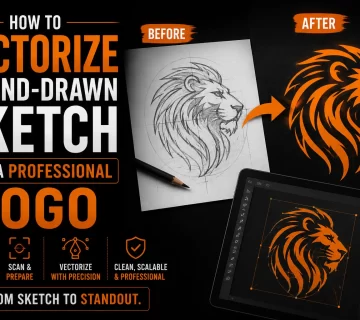
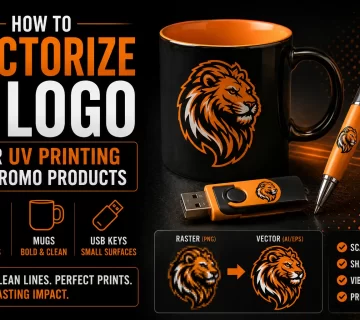
You created a logo with ChatGPT. It looks great as a PNG. Now you need it as an SVG so you can use it on the web, scale it for printing, edit it in design software, or send it to a manufacturer who insists on vector formats.
ChatGPT itself doesn’t produce usable SVG logos directly. Its image tool outputs PNG files. Its SVG-code generation works for very simple shapes but produces poor results for real logos. So you’ll need to add one step: converting the ChatGPT PNG into a clean SVG.
This guide walks through three concrete methods (free, paid, and professional), with step-by-step instructions for each. By the end, you’ll have a production-ready SVG of your ChatGPT logo.
Why You Want SVG (Not Just PNG)
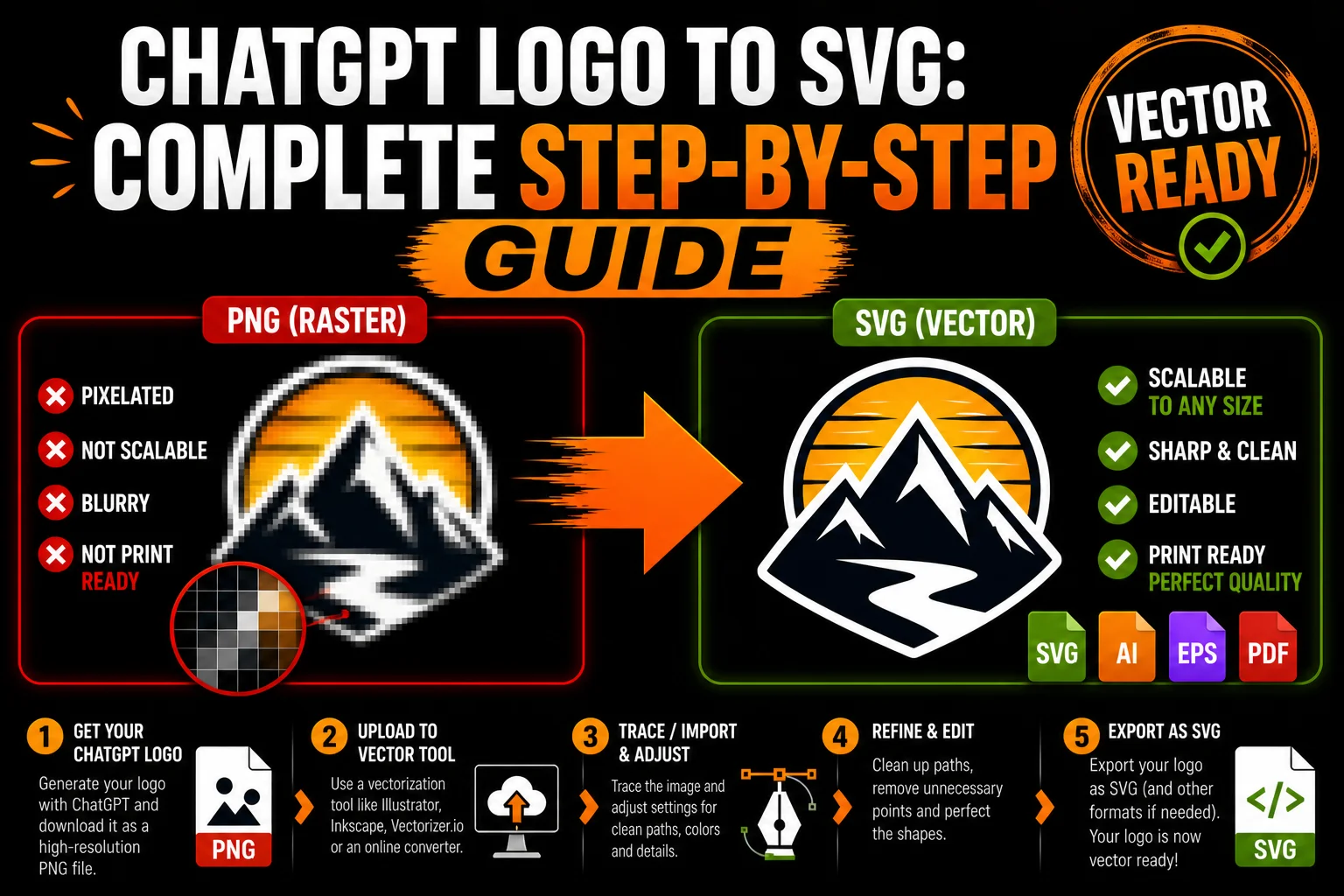
A quick refresher. SVG (Scalable Vector Graphics) is a vector file format. Unlike PNG (which is made of pixels), SVG describes shapes with mathematical paths. This gives you:
- Infinite scaling. Your logo looks crisp from a 16-pixel favicon to a 50-foot billboard.
- Editability. Colors, shapes, and elements can be modified in any vector editor.
- Smaller file size for many cases (tiny SVGs can be just a few KB).
- Web-friendliness. SVG renders natively in browsers, animates with CSS, and works everywhere.
- Production compatibility. Printers, embroiderers, vinyl cutters, and manufacturers can all use SVG.
If you have a logo and you want it to work everywhere, you want it as SVG (and ideally also AI, EPS, and PDF for full coverage).
Why ChatGPT Can’t Just Give You the SVG Directly
Two paths in ChatGPT, neither produces a usable SVG logo on its own:
The image tool produces PNG. When you ask ChatGPT to create a logo image, it generates a beautiful PNG. Not an SVG. There’s no setting or prompt trick to change this. ChatGPT’s image model produces raster output only.
Direct SVG code generation is rough. If you ask ChatGPT to “write SVG code for a logo,” it’ll produce XML markup. The result is technically a vector file, but the visual quality is almost always too crude to use as a real logo. ChatGPT writes SVG without seeing what it’s drawing, so it can’t make the visual judgments a designer would.
The realistic workflow is: generate the logo as an image in ChatGPT (where the visual quality is high), then convert that image to SVG using one of the methods below.
Step-by-Step: Three Methods to Convert ChatGPT Logo to SVG
Method 1: Free Online Auto-Tracer (Fast & Cheap)
Best for: simple, high-contrast logos. Quick tests. Low-stakes use.
Tools: Vectorizer.io, PNG2SVG, AutoTracer.org, online Inkscape converters, various AI vectorizer sites.
Step 1: Generate your logo in ChatGPT. Use the image tool. Prompt for a clean, simple design. Example prompt:
“A minimal logo of a stylized fox head, black on white, flat design, no gradients, no shadows, vector-style line art.”
Step 2: Download the PNG at the highest resolution. Right-click the generated image and save. Pick the largest version available.
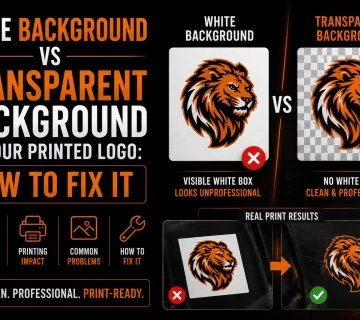
Step 3: Optional cleanup. If your image has stray colors, soft backgrounds, or unwanted elements, clean it up in any image editor. Make the background pure white (or transparent) and isolate your logo.
Step 4: Upload to a free auto-tracer. Go to one of the free SVG converter sites. Upload your PNG.
Step 5: Adjust settings if available. Most tools let you choose:
- Number of colors (start with 1-3 for logos)
- Threshold (controls how aggressively edges are detected)
- Smoothness (higher = simpler paths)
Step 6: Download the SVG.
Step 7: Test it. Open the SVG in a browser or in Inkscape (free) or Illustrator. Check:
- Is your logo recognizable?
- Are the paths clean or jagged?
- Are colors right?
- Does it scale without falling apart?
If it looks good, you’re done. If it looks rough, you’ll either need to clean it up manually (next method) or use a professional service.
What to expect: For a simple, clean ChatGPT logo with high contrast, free auto-tracers can produce passable results. For most AI logos with anti-aliased edges, gradients, or fine detail, the output will need significant cleanup or a redo.
Method 2: Adobe Illustrator’s Image Trace (Hands-On Control)
Best for: designers, mid-complexity logos, when you want to control the result.
Tools: Adobe Illustrator (subscription required, ~$20-30/month).
Step 1-3: Same as Method 1 (generate logo in ChatGPT, download PNG, optional cleanup).
Step 4: Open Illustrator and place the PNG. Create a new document. Go to File > Place and select your PNG. Click to place it on the artboard.
Step 5: Open Image Trace. With the image selected, go to Window > Image Trace to open the panel. Or click the “Image Trace” button in the top toolbar.
Step 6: Choose a preset to start.
- “Black and White Logo” for one-color logos
- “3 Colors” or “6 Colors” for multi-color logos
- “Sketched Art” for line drawings
- “High Fidelity Photo” for complex images (rarely ideal for logos)
Step 7: Fine-tune settings. In the Image Trace panel:
- Threshold: Higher = darker traced shapes
- Paths: Higher = more detailed paths
- Corners: Higher = sharper corners
- Noise: Higher = ignores small details (clean up artifacts)
- Method: Abutting (no gaps) or Overlapping (cleaner)
Watch the live preview as you adjust.
Step 8: Click “Expand” to convert to editable paths. This turns the trace into real vector shapes you can edit.
Step 9: Clean up.
- Use the Direct Selection tool to fix wonky paths.
- Simplify nodes (Object > Path > Simplify).
- Adjust colors to match your brand.
- Group elements logically.
Step 10: Save as SVG. File > Export > Export As > SVG. Choose the appropriate options:
- Styling: Inline or Internal CSS
- Decimals: 2-3 is plenty
- Minify: yes for web use
What to expect: With patience and design skills, Illustrator’s Image Trace can give you a polished SVG. Without those skills, the result may still need work. Plan on 30-60 minutes per logo for a clean result.
Method 3: Professional Vectorization Service (Fastest to Production-Ready)
Best for: real production use, complex logos, when you don’t want to DIY, when quality matters.
Step 1-3: Same as before (generate, download, optional cleanup).
Step 4: Send the PNG to a vectorization service. Upload your PNG via the service’s interface. Add any notes (specific colors, simplifications you want, formats you need).
Step 5: Wait. Most services turn around within 12-48 hours, sometimes within hours for rush jobs.
Step 6: Receive your files. A typical professional vectorization delivery includes:
- SVG (the main vector file)
- AI (Adobe Illustrator native)
- EPS (legacy print compatibility)
- Vector PDF (universal)
- High-res PNG (for situations needing raster)
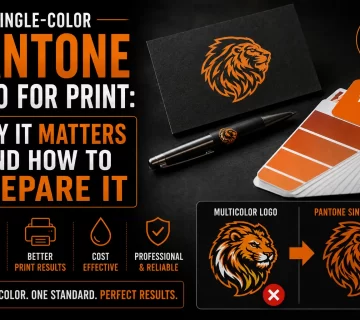
- Single-color version (for one-color print, embroidery, vinyl)
- Reversed/white version (for dark backgrounds)
Step 7: Verify and use. Open the SVG to confirm everything looks right. Use it everywhere.
What to expect: Polished, professional output. Clean paths, intentional curves, proper layers, multiple format coverage. The fastest way to go from “ChatGPT logo” to “logo I can actually use anywhere.”
Tips to Prompt ChatGPT for Logos That Convert Well
If you know in advance you’ll be converting your ChatGPT logo to SVG, prompt for designs that vectorize cleanly:
Use vector-friendly language. “Minimal logo,” “flat design,” “vector style,” “clean line art,” “logo design,” and “icon style” produce better results.
Specify limited solid colors. “Maximum 3 solid colors. No gradients. No drop shadows. No glows.”
Avoid photorealism. No “3D look,” “metallic,” “embossed,” “glossy,” or “realistic.”
Skip text in the image. ChatGPT’s text rendering is unreliable. Generate just the symbol/icon, then add real type in your vector editor.
Aim for bold, clear shapes. A logo with one strong element vectorizes better than one with twenty tiny details.
Iterate. Generate multiple variations, pick the cleanest one. Don’t try to vectorize your first attempt.
A well-prompted ChatGPT logo image will go through any vectorization method with much better results.
Common Issues and How to Fix Them
The SVG looks pixelated. That’s not actually pixelated, it’s probably a raster image embedded in an SVG wrapper. Some “converters” do this. Make sure your SVG actually contains vector paths, not embedded bitmap data.
Colors look wrong after conversion. Auto-trace samples whatever pixel colors are in the image. If you need specific colors, re-color the SVG manually in a vector editor or use a hex/Pantone match.
Paths are jagged or broken. Auto-tracers struggle with anti-aliased edges. Either reduce the number of colors in the trace settings, or use professional vectorization.
Text in the logo is gibberish. AI-generated text is rarely correct. Remove the AI text and replace with real, editable type in your vector editor.
File is huge. Auto-tracers often produce SVGs with thousands of unnecessary nodes. Use Illustrator’s “Simplify” function (Object > Path > Simplify) or use professional vectorization.
Logo looks “almost right” but slightly off. This is the classic auto-trace tell. The shapes are recognizable but lack design intent. Hand-vectorization fixes this.
Final Workflow Summary
To recap, the cleanest path from a ChatGPT-generated logo to a production-ready SVG:
- Generate the logo as a PNG image in ChatGPT (use vector-friendly prompts).
- Download the highest-resolution PNG available.
- Vectorize using one of the three methods (free auto-tracer, Illustrator, or professional service).
- Verify the SVG looks clean and scales correctly.
- Export in additional formats (AI, EPS, PDF) if you’ll need them.
- Use for any web, print, or production purpose.
For a quick, simple logo where good-enough is fine, free auto-tracers do the job. For a logo you’ll actually use on real products, real packaging, real merchandise, professional vectorization is worth it every time.
If you’d rather skip the DIY altogether, send us your ChatGPT logo as a PNG and we’ll send back clean, professional SVG files (plus AI, EPS, and PDF) within 24 hours. Production-ready, polished, and easy to use anywhere.
Your AI logo deserves to be more than a screenshot. Let’s get it production-ready.