
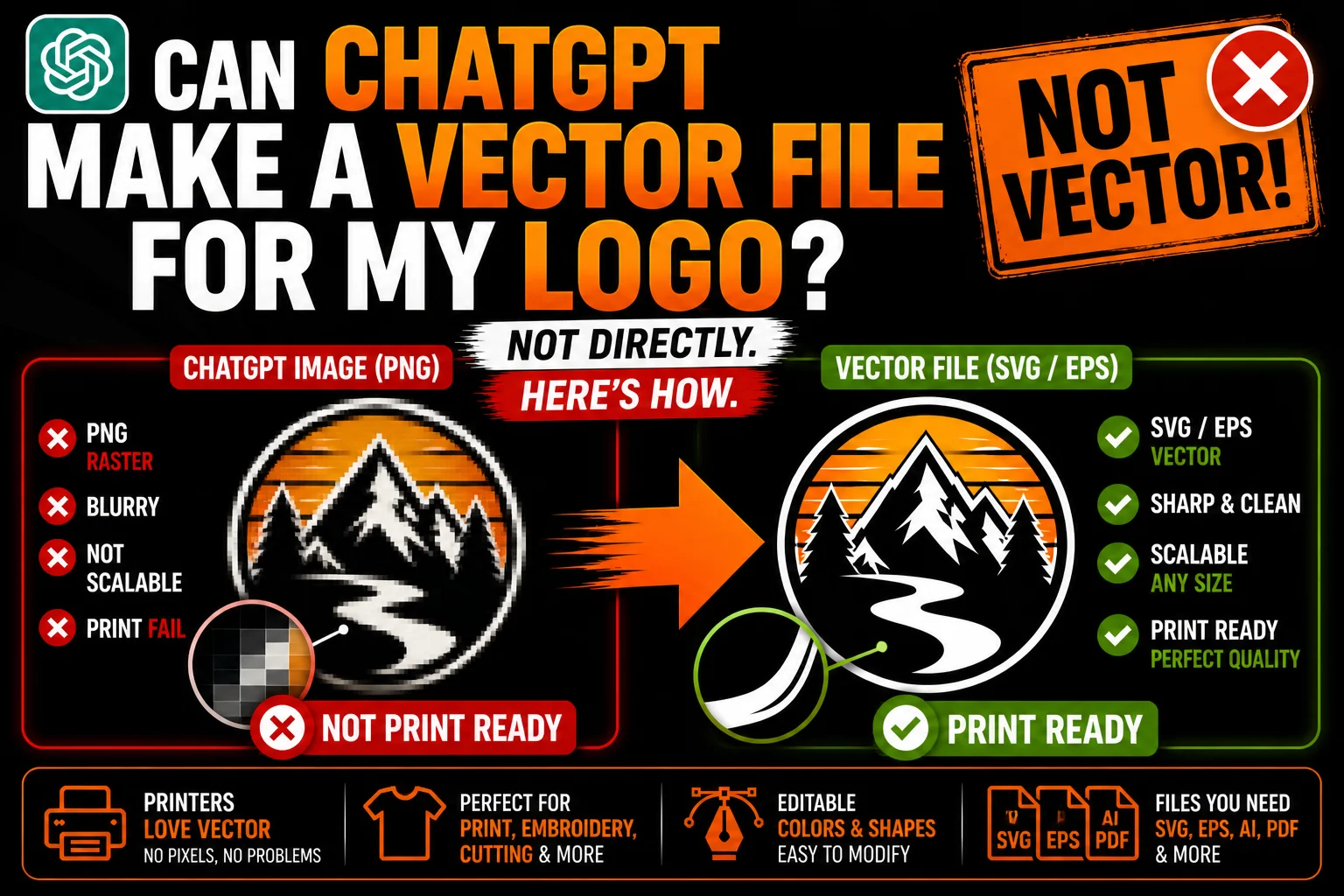
Can ChatGPT Make a Vector File for My Logo?
You spent an evening with ChatGPT and ended up with a logo you actually love. Now you’re trying to use it: print business cards, order branded merch, slap it on a website header at proper size, maybe set up a sign for your storefront. And every single one of those people is asking for a vector file of your logo.
So can ChatGPT just make you that vector file? Not really. Not in any way that gives you a polished, usable result. ChatGPT can write SVG code (which is technically a vector format), but the visual output is rarely good enough for a real logo. And ChatGPT’s image generator only produces PNGs, which aren’t vector files at all.
This article walks through exactly what you can and can’t get from ChatGPT, why it falls short for logo vectors, and how to get a real vector logo from your AI design.
The Quick Answer (And the Catch)
Two things ChatGPT can do:
- Generate logo images. Beautiful PNG output through its image tool. Not a vector file.
- Write SVG code. Technically a vector file, but the visual quality is usually too crude for a real logo.
What ChatGPT cannot do:
- Convert an AI-generated image into a polished vector file.
- Produce production-ready vectors directly from a logo prompt.
- Replace the vectorization step that bridges an AI design and a real, usable vector logo.
If you want a real vector file of your AI-generated logo, you need to add one step ChatGPT itself can’t perform: vectorization. We’ll get to how that works below.
Why Logos Need Vector Files
A quick refresher on why this matters at all. A logo isn’t just a picture, it’s an asset that has to work everywhere your brand shows up:
- Tiny: favicon, app icon, business card
- Medium: website header, social media profile
- Large: sign, banner, billboard, vehicle wrap
- On products: t-shirts, mugs, tote bags, packaging
- One color: black-only stamps, embroidery limits, single-color print runs
- Custom colors: matching brand-specific Pantones for high-end print
A vector file handles all of this beautifully. A pixel image (PNG, JPG) handles only the size it was made at, and only on screens. The minute you try to scale, recolor, or send it to a serious production process, a raster logo falls apart.
That’s why every printer, embroiderer, sign maker, manufacturer, and merch company asks for vectors. A logo that doesn’t have a vector file isn’t really a finished logo, it’s a draft.
What Happens When You Ask ChatGPT for a Logo Vector Directly
Try this experiment. Open ChatGPT and type:
“Create an SVG vector logo for a coffee shop called ‘Brew & Bean,’ with a stylized coffee bean and clean modern type.”
You’ll get back a chunk of SVG code. Save it as brewandbean.svg and open it in a browser or vector editor. What did you get?
In the best case: a recognizable coffee bean shape, maybe with the words “Brew & Bean” in some default-looking font.
In the realistic case: an oval-ish shape that’s supposed to be a bean, with text that doesn’t quite line up, geometric awkwardness in the curves, and a general vibe of “a logo, but not one you’d actually use.”
Why does this happen? ChatGPT is writing the SVG code without seeing what it’s drawing. It predicts coordinates that should form the right shape, but it has no visual feedback to check whether the result actually looks good. For simple geometric shapes (a circle, a square, a triangle), this works fine. For anything resembling a real, designed logo? It’s not enough.
What Happens When You Use ChatGPT’s Image Tool Instead
The other path: use ChatGPT’s image generator. The output is dramatically better visually. You’ll get polished, professional-looking logos that genuinely look like real branding work.
The catch: every single output is a PNG. A flat pixel image. Not a vector file.
You can’t take that PNG to a screen printer who needs vector. You can’t scale it to billboard size without it falling apart. You can’t recolor it instantly. You can’t cut it on a vinyl machine. Visually, it’s a logo. Technically, it’s not a usable logo asset.
So you’re stuck between two unsatisfying options:
- SVG code from ChatGPT: vector format, ugly result.
- Image from ChatGPT: beautiful result, wrong format.
Neither delivers what you actually need.
The Workflow That Actually Gets You a Real Vector Logo
Here’s what works in practice, the workflow used by anyone seriously combining AI with real branding work:
Step 1: Design your logo as an image in ChatGPT. Use the image tool. Iterate on prompts. Refine until you have a PNG of the logo you genuinely love. Don’t bother trying to get good SVG out of ChatGPT directly, just focus on getting the look right in image form.
Step 2: Save the PNG at the highest resolution available. Cleaner source = cleaner vector.
Step 3: Vectorize the image. This is the step ChatGPT cannot do. Two ways:
- Auto-tracing. Free or cheap. Use Adobe Illustrator’s Image Trace, Vector Magic, Inkscape’s Trace Bitmap, or an online converter. Adequate for very simple, high-contrast logos. Often messy or unusable for anything more complex.
- Professional vectorization. A designer redraws your logo by hand as clean vector paths. Polished, editable, production-ready. Comes back in every format you need.
Step 4: Receive your vector logo files. Multiple formats (SVG, AI, EPS, PDF), plus useful variants (single color, reversed, simplified) that printers and manufacturers will actually use.
That’s how you go from “ChatGPT made me a logo” to “I have a real vector logo I can use anywhere.”
Why Auto-Trace Often Isn’t Enough for a Logo
A common shortcut people try: skip professional vectorization, just run their ChatGPT logo PNG through a free auto-tracer. Sometimes that works. Often it doesn’t. Here’s why:
Anti-aliased edges create chaos. Every AI image has soft, blended edges. Auto-tracers don’t know how to handle these and either flatten them (losing detail) or trace every color band separately (creating dozens of unnecessary paths).
Gradients break. AI loves to add atmospheric lighting and subtle color blends. Auto-tracers can’t decide where one color ends and another begins, producing messy or banded results.
Fine details fragment. Thin lines may disappear or break into chains of disconnected slivers. A clean illustration can become a fragmented mess.
Text becomes garbage. Any letterforms in the AI image get traced as random curve paths, not as editable text. Your logo’s wordmark won’t be editable or refinable.
Colors don’t match brand specs. Auto-trace samples whatever pixel colors are in the image. If your brand needs specific Pantone or hex values, you’ll have to manually rework the entire color system anyway.
For a clean, simple, high-contrast logo (think: solid black silhouette on white), auto-trace can be enough. For most real AI-generated logos with style, character, or color complexity, you’ll want professional vectorization.
Tips to Get a Better Result From ChatGPT in the First Place
If you’re going to vectorize your ChatGPT logo, design it in a way that vectorizes well:
Prompt for simplicity. “Minimal,” “flat design,” “two colors,” “no gradients,” “clean line art” all produce designs that translate to vector beautifully.
Avoid realistic shading. “3D look,” “metallic,” “embossed,” “with shadow,” all sound cool but produce nightmares for vectorization.
Specify limited colors. “Maximum 3 solid colors” makes the vectorization process dramatically smoother.
Skip text in the image. ChatGPT-generated text in logos is rarely typographically correct anyway. Generate just the symbol/icon, then add real, editable type later in a vector editor.
Aim for bold, distinct shapes. A logo with one strong, clear element vectorizes better than one with twenty tiny details.
Generate at high resolution. When ChatGPT offers higher-res output, take it. Cleaner source = cleaner vector.
A well-prompted ChatGPT logo will go through vectorization with minimal issues and come out looking polished. A poorly prompted one (gradients, shadows, fine detail, AI-generated text) will need much more cleanup or even a full redraw.
A Realistic Workflow Example
Let’s walk through how this looks in practice for a real small business.
Tuesday evening. You’re starting a small skincare brand called Petal. You spend an hour with ChatGPT generating logo concepts. After a few rounds, you land on a clean line-art rose with custom-feeling type. You love it.
Tuesday night. You download the PNG at the highest resolution ChatGPT will give you. You realize you can’t actually use this PNG for the things you need (custom packaging, label printing, embroidery on robes, a sign for the storefront).
Wednesday morning. You send the PNG to a vectorization service. By Wednesday afternoon, you have a folder full of files: an SVG version, an AI version, an EPS version, a PDF version, plus a single-color (black) version for situations where you need it simple, and a reversed (white) version for dark backgrounds.
Wednesday afternoon. You send the AI file to your packaging printer. You send the EPS to your embroiderer for branded robes. You send the SVG to your web developer. You send the PDF to your sign maker.
Everything prints, embroiders, and scales beautifully. You spent maybe $15 on AI tokens and a small fee for vectorization, and you have a complete logo asset package that would have cost ten times that through a traditional design agency.
This is the workflow that’s working.
When You Should Skip ChatGPT and Hire a Designer
To be honest, there are situations where AI plus vectorization isn’t the right approach:
- You’re building a brand you intend to scale to millions of customers and you want true originality.
- Your industry has strict design conventions (medical, financial, legal).
- You need a comprehensive brand system, not just a logo (typography, color theory, voice, applications).
- You want a design rooted in original concept work rather than AI-generated remixing.
- You’ll need ongoing design support (campaigns, print collateral, social, packaging extensions).
For these cases, hire a real designer or branding agency. For everyone else (side hustles, microbrands, MVPs, small business launches, personal brands), AI plus vectorization is faster, cheaper, and good enough.
The Bottom Line
So, can ChatGPT make a vector file for your logo? Technically yes (through SVG code generation), but practically no, the output is rarely usable for a real logo. The image tool gives you beautiful logos but in the wrong format.
The real solution is the AI-plus-vectorization workflow. Use ChatGPT to design the logo as an image. Get that image professionally vectorized. End up with a complete set of clean, usable vector files in every format you need.
That last step is what we do. Send us your ChatGPT logo as a PNG, and we’ll redraw it as polished vector files (SVG, AI, EPS, PDF) ready for any printer, embroiderer, manufacturer, or production process. Fast turnaround, no fuss, and you finally have a logo that’s truly usable.
Your AI-generated logo deserves to be more than a screenshot. Let’s make it real.

No comment