
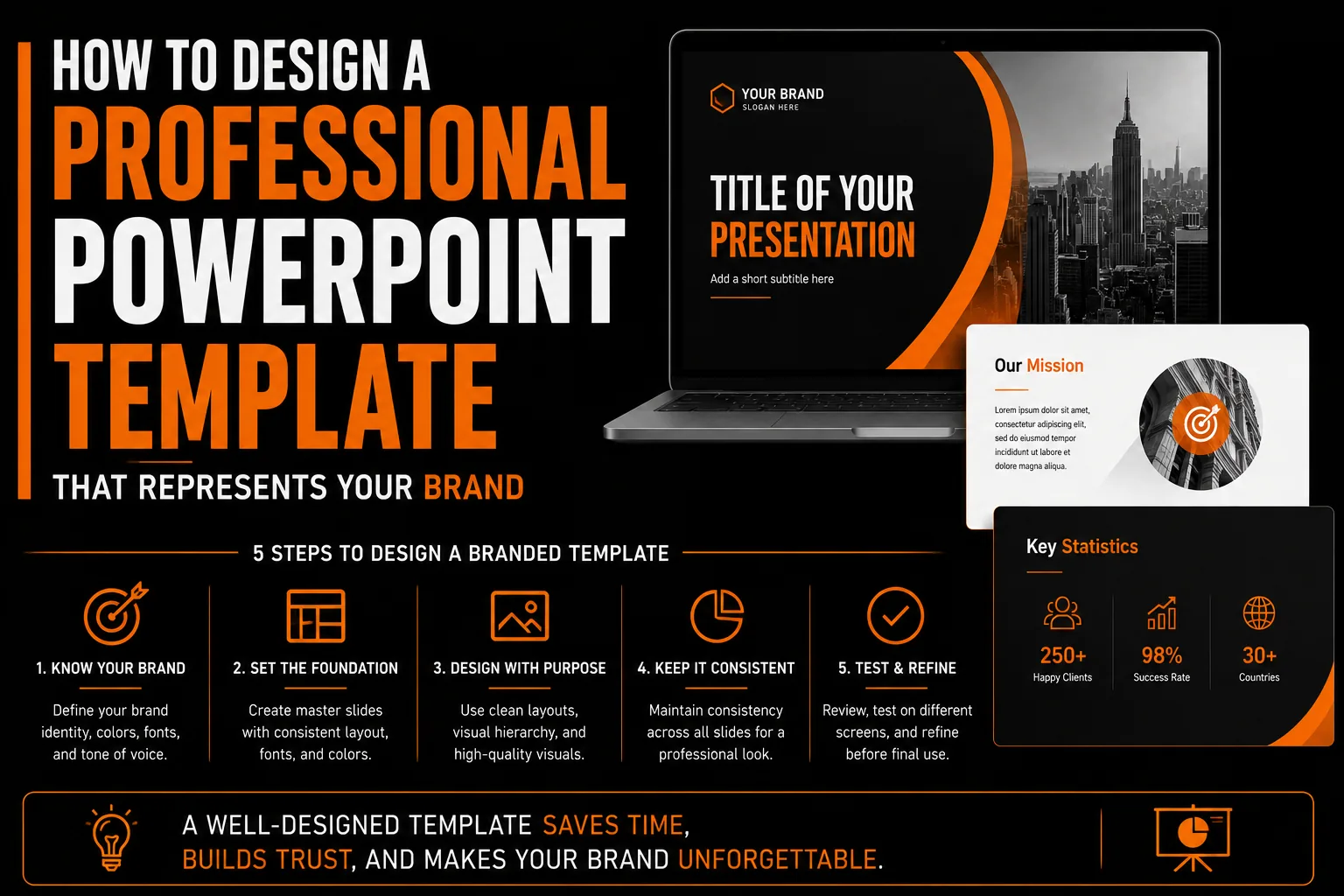
How to Design a Professional PowerPoint Template That Represents Your Brand
Every presentation your team delivers is a brand impression. A sales pitch, a client update, a conference talk, a board meeting, every time a slide appears on a screen, the visual quality of that presentation communicates something about your organization’s attention to detail and professional standards. Yet most businesses allow their teams to create presentations from scratch, producing a different visual identity in every meeting, inconsistent with the brand that appears on the website, the business cards, and the marketing materials. A professionally designed branded PowerPoint template solves this problem once and makes every future presentation an extension of the brand rather than a departure from it.
Why Presentation Visual Consistency Matters
The moment a presentation slide appears on a screen at a client meeting, an investor pitch, or a conference talk, the audience begins forming an impression of the presenting organization before any spoken content has been delivered. A presentation that looks polished, consistent, and on-brand communicates that the organization is organized, professional, and pays attention to detail. A presentation assembled from a collection of different fonts, colors, and slide styles communicates the opposite regardless of how excellent the content may be.
The cumulative effect of this inconsistency is real and documented. Sales teams using inconsistent presentations have lower proposal acceptance rates than those using consistently branded materials. Investors evaluating pitch decks form positive first impressions from the quality of the visual presentation before evaluating the underlying business. Conference audiences make judgments about speaker expertise partly based on the quality of the slides supporting their talk.
The Slide Master: Foundation of Template Consistency
PowerPoint’s Slide Master feature is the technical foundation of any consistent branded template. The Slide Master defines the visual properties that every slide in the presentation inherits: background color, font assignments, color palette, graphic elements, and the position of any fixed elements like the logo. When a designer builds a template correctly using Slide Master, a presenter cannot accidentally produce an off-brand slide, the brand constraints are built into the structure rather than relying on the presenter’s design judgment.
To access Slide Master in PowerPoint, go to View and select Slide Master. The top slide in the left panel is the parent master, changes made here apply to all layouts beneath it. Set brand colors by accessing the Colors dropdown and selecting Customize Colors. Enter your brand’s exact hex codes for each color slot. Set brand fonts in the Fonts dropdown by selecting Customize Fonts and assigning your primary typeface to Heading and your secondary typeface to Body.
Essential Slide Layouts for a Business Template
A complete business PowerPoint template needs at minimum five distinct layouts to cover the primary content types that appear in business presentations. The title slide introduces the presentation with the most visual weight. The section divider slide marks transitions between major sections. The standard content slide accommodates the majority of presentation content. The data and chart slide has specific layout requirements for clear visualization. The closing slide presents the call to action and next steps clearly.
Logo Placement and Protection
The logo must appear on every slide in a consistent position, size, and color version. Use a PNG file with a transparent background so the logo appears cleanly on both light and dark background slides. Place it on the Slide Master rather than on individual slides, and ensure it is not selectable in Normal view to prevent presenters from accidentally moving or deleting it.
Distribution and Maintenance
Save the finished template as a .potx file and store it in a shared cloud location where every team member can always access the current version. Create a brief one-page usage guide explaining which layout to use for which type of slide, how to add new slides from the correct layout, and who to contact when a new layout type is needed. Update the template promptly whenever the brand identity changes.
Frequently Asked Questions About Branded PowerPoint Templates
How do I add my logo to every slide in PowerPoint automatically?
Open View > Slide Master. On the top master slide, insert your logo using Insert > Picture and position it where you want it on all slides. The logo appears automatically on every slide layout inheriting from the master. Use Size and Position settings to lock it against accidental movement. Save as a .potx template to preserve all settings.
What is the correct image size for a logo in a PowerPoint template?
Display at 100 to 200 pixels wide on a 1920x1080px slide, with the image file itself at least 200 to 400px wide for sharpness on high-resolution projectors. Use a PNG with transparent background so the logo appears cleanly on any slide background color.
How many slide layouts should a branded PowerPoint template include?
Between 8 and 15 distinct layouts covering: title slide, section divider, text-only content, content-plus-image, full-bleed photograph, two-column comparison, data visualization, testimonial, team member profile, and contact slide. Purpose-built layouts eliminate the manual formatting that makes presentations look inconsistent.
Can I use custom fonts in a PowerPoint template?
Yes, but the font must be installed on every computer that opens the presentation. For external presentations, embed fonts via File > Options > Save > Embed fonts, or use universally available system fonts to prevent font substitution that changes the visual appearance of every slide.
What is the difference between a PowerPoint theme and a PowerPoint template?
A theme (.thmx) stores color schemes, font schemes, and graphic effects. A template (.potx) stores both the theme and the complete set of slide layouts and static elements like logos. For branded business templates, a .potx file is always preferable because it includes the complete visual design of each slide layout.







No comment